
Licensing and configuration for SmartTE Direct will be managed by SmartHub. See our SmartHub KB for details on adding a license, details, and configuration options:
https://portal.staylinked.com/sl/kb_sb/knowledge-base/adding-and-extending-smartbrowser-licensing/
Accessed under Host > Configure > SmartHub from the client you can add SmartHub settings, manually assign a seat to the device, or check your SmartHub status.
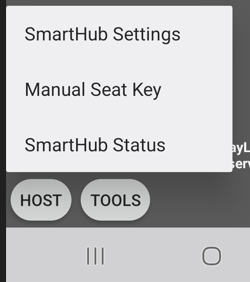
SmartHub Settings
This dialogue allows the configuration of the client to locate the SmartHub server and supply a basic Asset Tag:
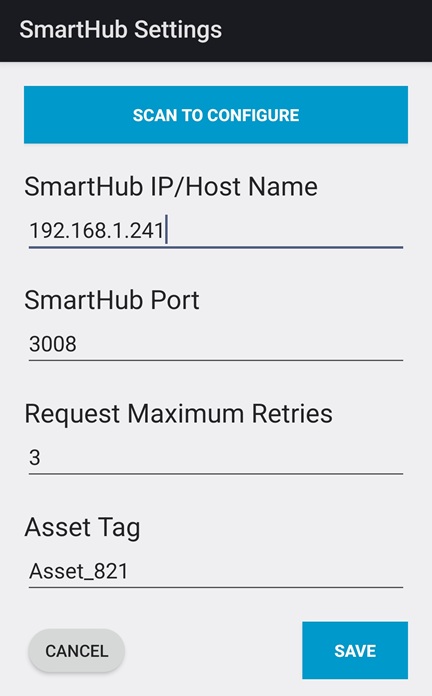
SmartHub IP/Host Name: Enter any Ip, name or address that the device network stack can resolve as a working address.
SmartHub Port: Use 3008 unless the port has been changed from the default configuration.
Request Maximum Retries: Enter a number of attempts by the client to check in for licensing and configuration before entering a wait period. The client will wait until the next normal check-in period before trying again.
Asset Tag: Enter a value that the SmartHub server will record as a value next to the entry for this license checkout for tracking purposes.
Manual Seat Key
Without SmartHub, clients will be able to add a manual seat key, generated by a licensed SmartHub installation. This is available from the device under Host > Configure > SmartHub > Manual Seat Key.
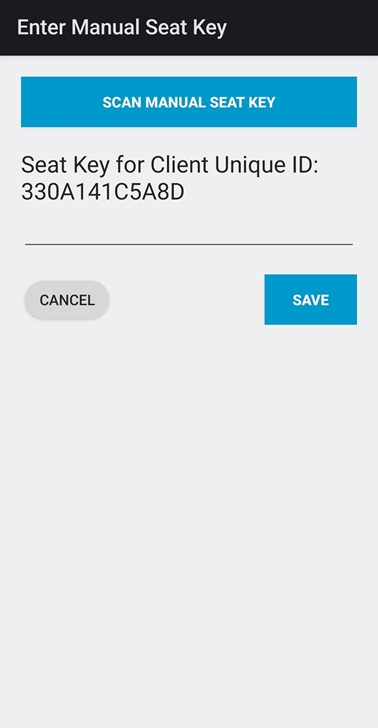
Without a license, devices will operate in demonstration mode for up to one hour.
SmartHub Status
This dialogue provides a wide range of information about the client and SmartHub, including the check-in details and licensing information. It also includes a few helpful buttons allowing users to collect configuration or logs, force a check-in and refresh details.
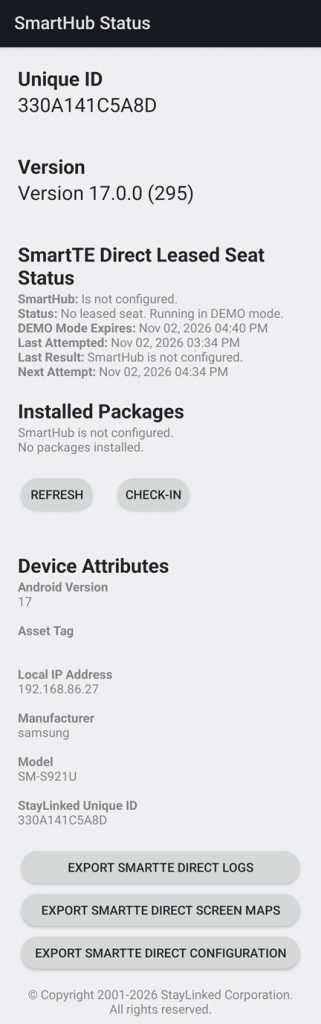
Unique ID Displays the unique identifier assigned to the device by StayLinked. This identifier is used to distinguish the device from other SmartTE Clients.
Version Displays the installed SmartTE Client version and build number.
SmartTE Direct Leased Seat Status Displays the current licensing status of the SmartTE Direct Client. This section provides information about the SmartHub configuration, leased seat status, and communication attempts.
SmartHub Indicates whether the SmartTE Client has been configured to communicate with SmartHub.
Status Displays the current leased seat status. If a leased seat is unavailable, the client may operate in DEMO mode.
DEMO Mode Expires Displays the date and time when the current demonstration period expires.
Last Attempted Displays the date and time of the most recent attempt to communicate with SmartHub.
Last Result Displays the result of the most recent SmartHub communication attempt. This information can assist with identifying configuration or connectivity issues.
Next Attempt Displays the scheduled date and time of the next SmartHub communication attempt.
Installed Packages Displays the packages currently installed or managed through SmartHub. If SmartHub has not been configured, the screen indicates that SmartHub is not configured and may report that no packages are installed.
Refresh Refreshes the displayed SmartHub status and package information.
Check-In Initiates a check-in request with SmartHub. This allows the client to attempt communication with SmartHub to retrieve updated information.
Device Attributes
Displays information about the Android device running the SmartTE Client. These attributes can assist with device identification, administration, and troubleshooting.
Android Version Displays the Android operating system version installed on the device.
Asset Tag Displays the asset tag associated with the device, when available. Asset tags can be used to identify and track devices within an organization.
Local IP Address Displays the current local IP address assigned to the device.
Manufacturer Displays the manufacturer of the Android device.
Model Displays the device model reported by the Android operating system.
StayLinked Unique ID Displays the unique identifier assigned to the device by StayLinked. This identifier corresponds to the Unique ID associated with the license tied to this device in SmartHub or by manual seat key.
Export Options
- Export SmartTE Direct Logs
- Export SmartTE Direct Screen Maps
- Export SmartTE Direct Configuration
These buttons will output the selected files to the downloads folder of the device. SmartHub will also offer options allowing the export of files for easy collection of files for Administrative purposes without the need for user intervention during troubleshooting.
Share the post "SmartTE and SmartHub Settings"