
This article will cover how to add both a standard license and a maintenance license to SmartBrowser and how to extend the license capacity. The first thing we need to get started is a license. The example shown below is a temporary license, typically used for evaluation of StayLinked software.
StayLinked SmartBrowser
Server Serial Number: C830D7D5
Permanent Clients: 0
Temporary Clients: 50
Temp. Clients Expire: 11 Feb 2026
StayLinked License Key: NJOW9FQIT9RULT5BN2ORC2A
Adding and Configuring a New License
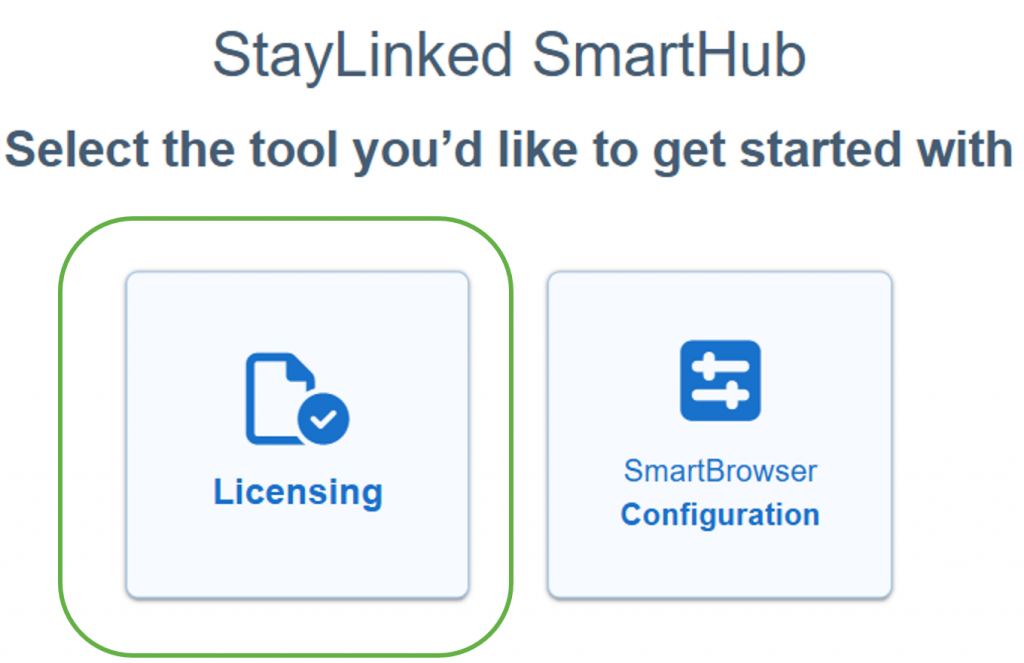
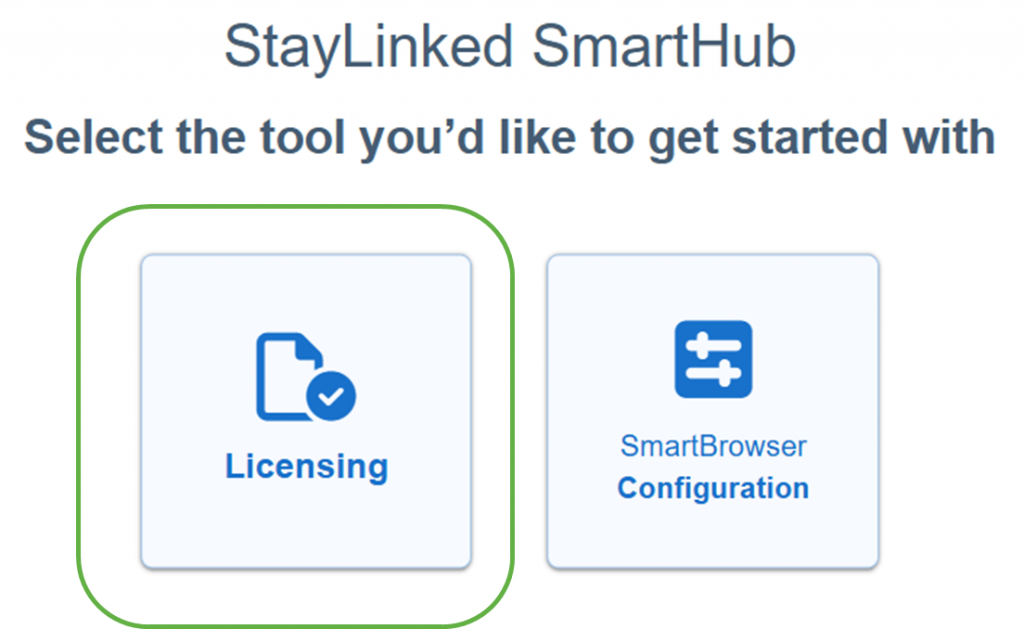
From the SmartHub home page, select ‘Licensing’.
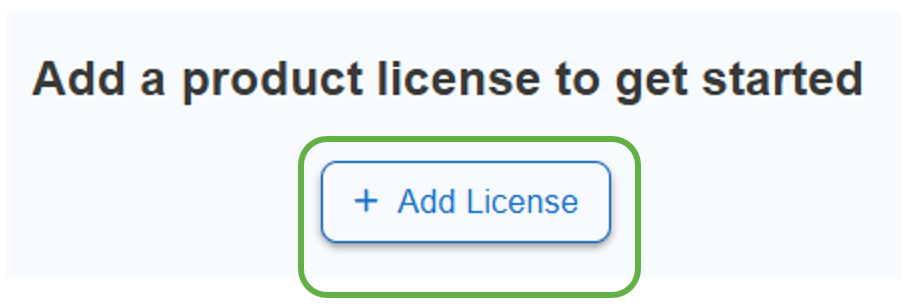
On the next page, select ‘Add License’.
The 'Serial number' field is pre-filled. Enter the rest of your license details as required. Note that these details must be identical to the license information received from StayLinked.
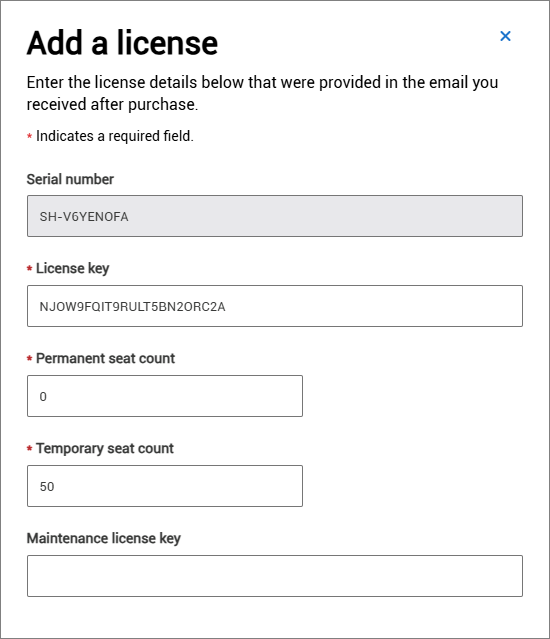
At this point, you are also able to enter the maintenance license key if you have one. More details about maintenance licenses can be found here.
Auto assignment configurations can also be set at this point. More details about these configurations can be found here.
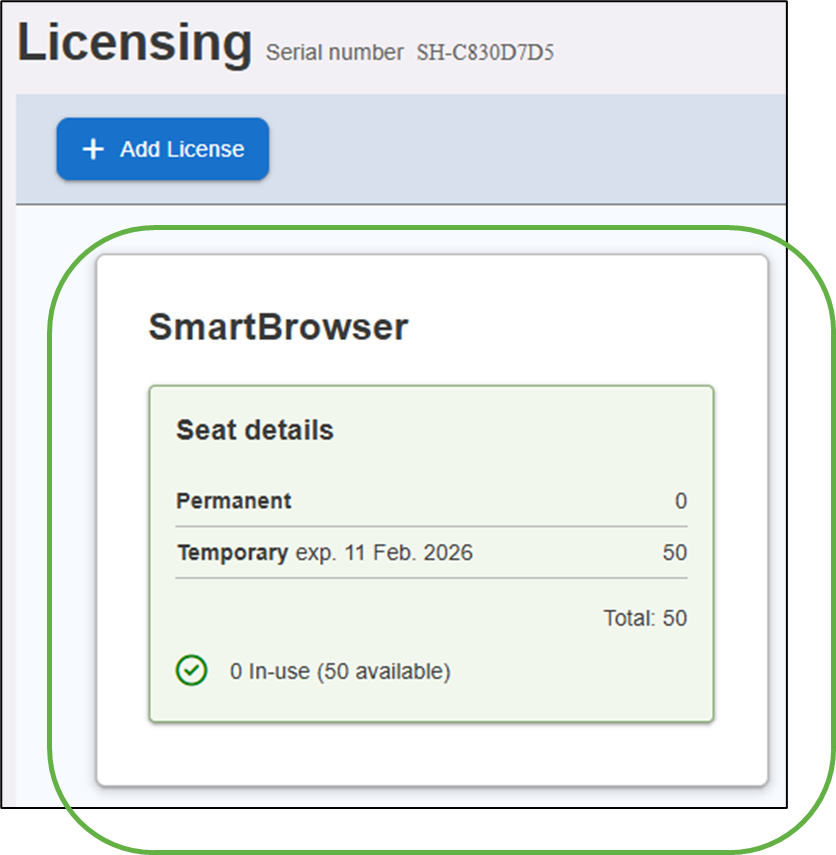
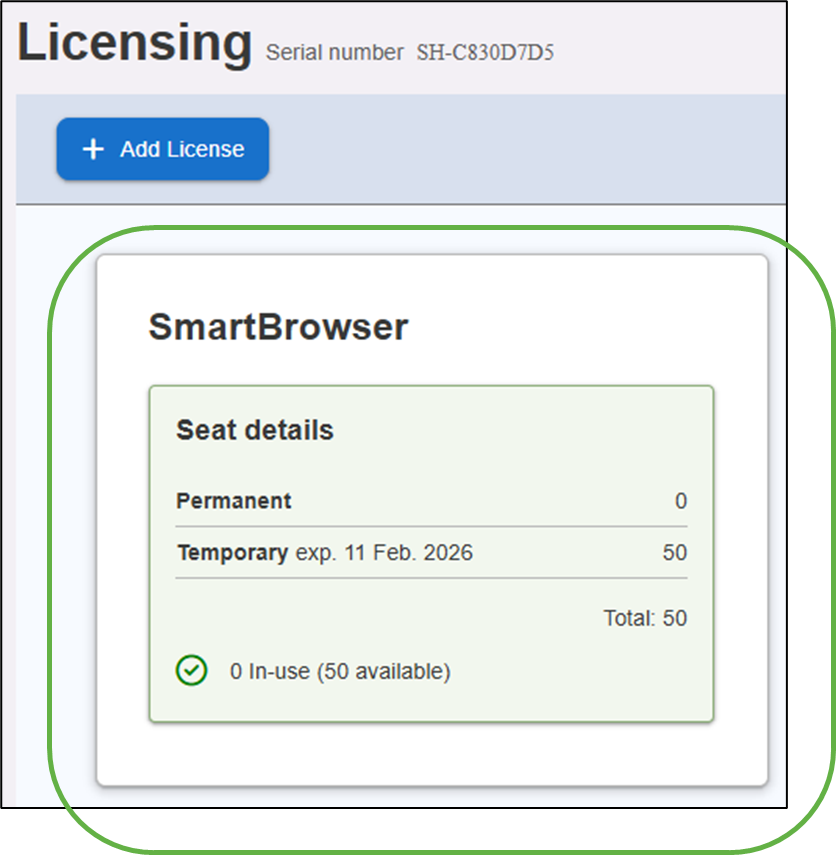
Our license now appears on the ‘Licensing’ page shown below. Tap anywhere on the license tile.
The 'License Details' dashboard provides information on all of the mobile devices SmartHub is aware of, including their identity, when they were granted seat assignments, the latest status, type of the seat, and expiry date down to the minute. The details on the license we just added are shown at the top left of the screen.
At this point, you are able to assign license seats to devices. The two seat assignment methods are auto-enrollment and manual assignment. Systems may incorporate both seat management models. For more details on these seat assignment methods, follow the links provided above.
Extending License Capacity
It is common to extend license capacity as more devices are brought online. This section covers expanding an existing license.
From the SmartHub home screen, select the ‘Licensing’ button.
Tap anywhere on the license tile.
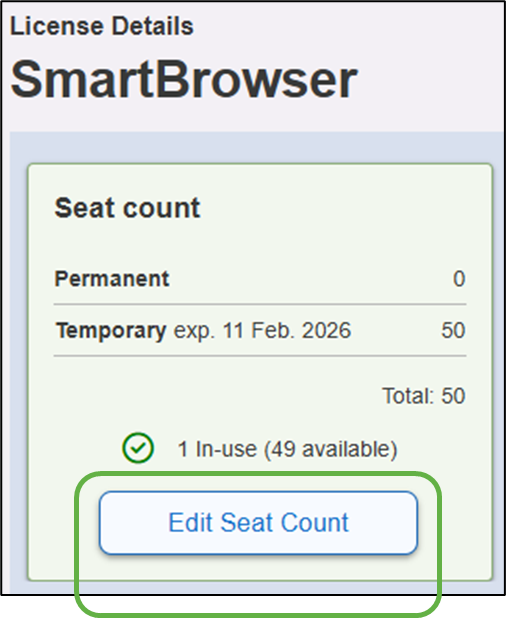
Select ‘Edit Seat Count’.
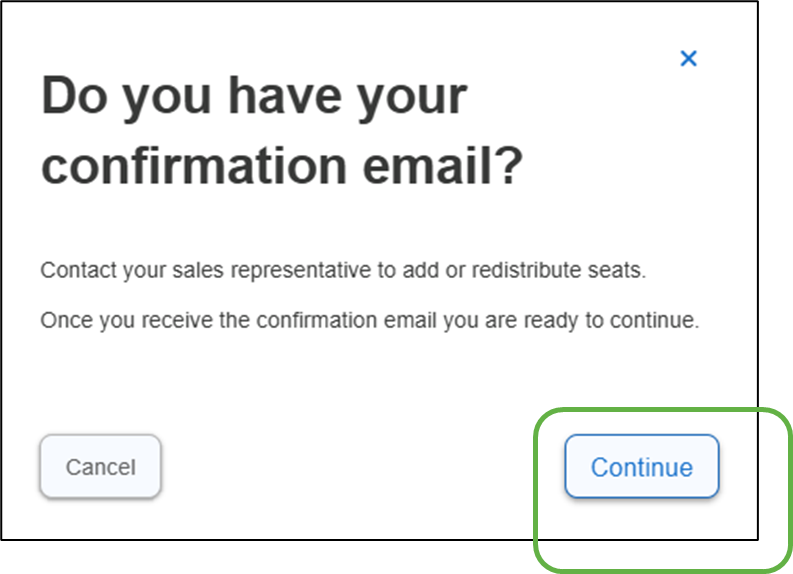
A pop-up confirmation menu will appear. Select ‘Continue’.
The serial number is already filled in. Enter the rest of the license details as required. Note that these details must be identical to the license information received from StayLinked.
Select ‘Save Changes’.
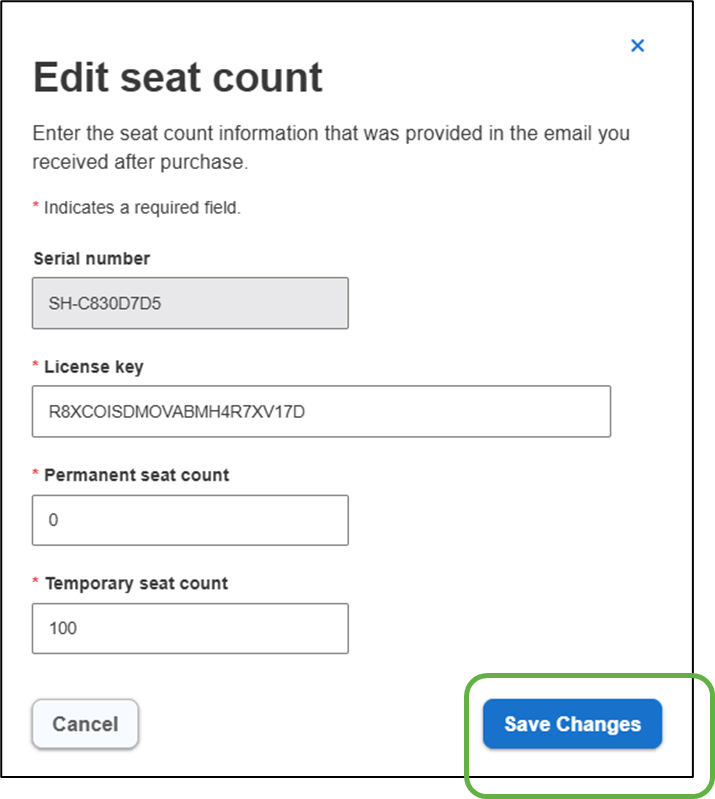
The License Details are now updated.
Adding a Maintenance License
A maintenance license allows for the seat expiration to be set from one day up to the number of days remaining until the maintenance license expiration. It is important to note that a standard SmartBrowser license is required to add a maintenance license.
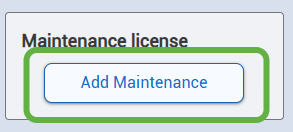
In the 'License Details' dashboard in SmartHub, select the ‘Add Maintenance’ button at the bottom left of the page.
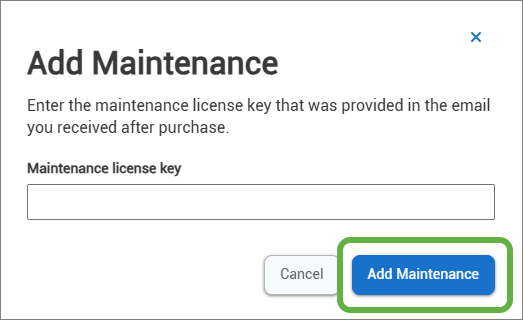
Next, enter the Maintenance License key in the text box, then select the 'Add Maintenance' button.
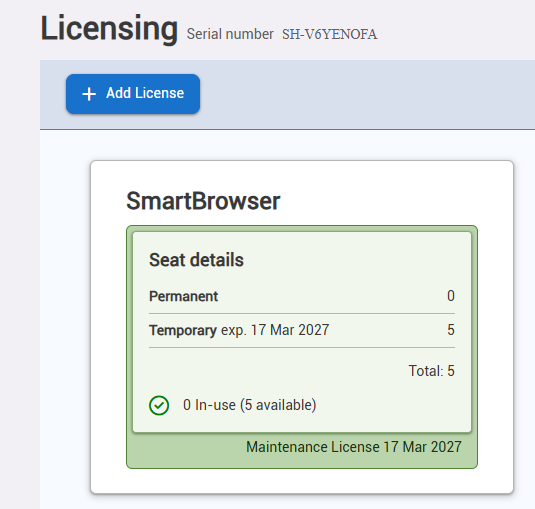
The maintenance license and expiration date will now appear on the "Licensing" page shown below.
Updating a Maintenance License
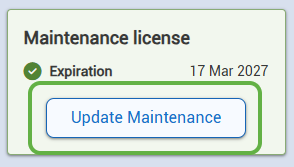
In the 'License Details' dashboard in SmartHub, select the ‘Update Maintenance’ button at the bottom left of the page.
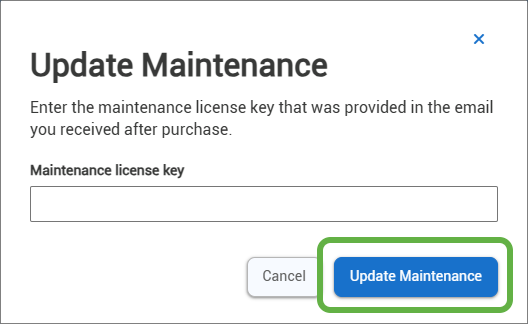
Next, enter the new Maintenance License key in the text box, then select the 'Update Maintenance' button.
Share the post "Adding and Extending SmartBrowser Licensing"