
Summary
The License Details Dashboard is the central interface for monitoring SmartBrowser license capacity, managing seat assignments, and configuring auto-enrollment behavior across device fleets.
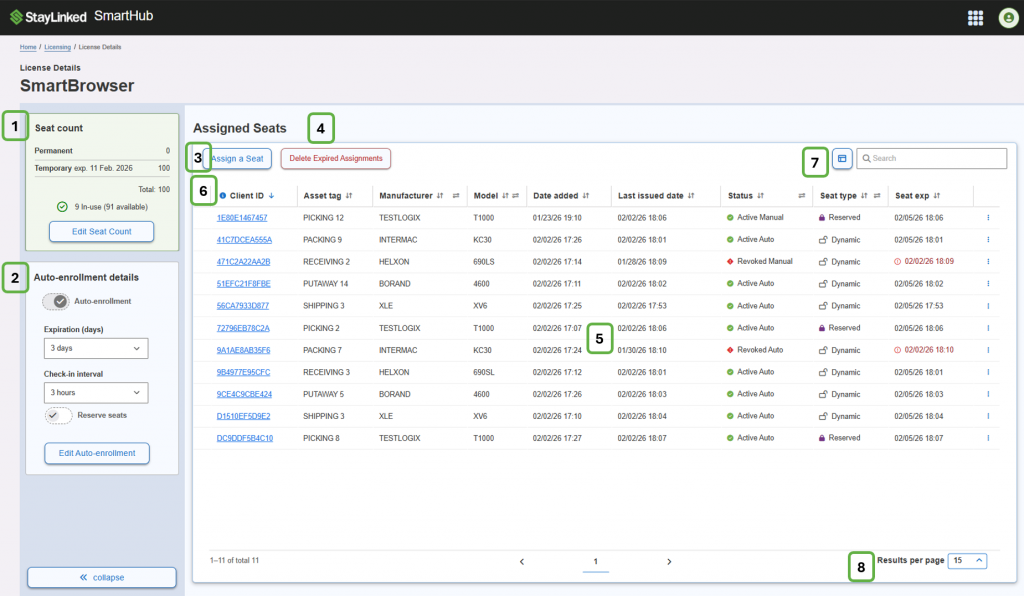
License Capacity & Configuration Panel (Left Side)
- Seat Count
Displays the total SmartBrowser license capacity purchased from StayLinked, broken down by license type.
- Permanent – Seats with no expiration
- Temporary – Seats with an expiration date
- Total – Combined seat capacity
- In-use / Available – Current seat utilization
Edit Seat Count – Allows administrators to update the licensed seat count when capacity is added to the license.
2. Auto-enrollment Details
Controls how SmartHub automatically assigns license seats to devices.
- Auto-enrollment – Enables or disables automatic seat assignment when devices check in.
- Expiration (days) – Defines how long an auto-enrolled seat remains valid if a device stops checking in.
- Check-in interval – Determines how often devices must contact SmartHub to maintain their seat assignment.
- Reserve seats – When enabled, allows seats to be reserved for specific devices.
Select Edit Auto-enrollment to modify these settings.
Assigned Seats Section (Main Panel)
3. Assign a Seat
Used to manually assign a license seat to a device. Manual assignment requires a Client ID and is typically used for controlled, offline, or special-purpose devices.
4. Delete Expired Assignments
Appears only when one or more expired, unreserved seats exist.
- Removes expired seat entries from the list
- Returns license capacity to the available pool
- Does not affect active or reserved seats
5. Assigned Seats Table
- Lists all devices that currently hold, or have recently held, a license seat.
- Each row represents a single device.
6. Column Headers
Client ID – A unique identifier for the device. Selecting the Client ID opens the seat details for that device.
Asset Tag / Manufacturer / Model – Optional device metadata used to help identify hardware within the fleet.
Date Added – The date and time the seat was first assigned to the device.
Last Issued Date – The most recent date the license seat was issued or renewed.
Status – Indicates the current state of the seat:
- Active – Seat is valid and SmartBrowser is fully enabled
- Revoked – Seat has been removed by an administrator
- Expired – Seat has passed its expiration date
Seat Type – Indicates how the seat is managed:
- Dynamic – Assigned via auto-enrollment
- Manual – Explicitly assigned by an administrator
- Reserved – Capacity held for a specific device
Seat Exp – Shows the expiration date and time for the seat. If the seat expires and the device cannot check in, the SmartBrowser client will enter Demo Mode.
Row Actions Menu – Provides device-specific actions, such as:
- Revoking a seat
- Reserving or unreserving a seat
- Editing seat details
Available actions depend on the seat’s current status and type.
Search and Pagination
7. Search
Filters the Assigned Seats list by Client ID, asset tag, or device details.
8. Results per Page
Controls how many seat entries are displayed per page.
Share the post "License Details Dashboard"