
SmartHUB connects to an SMTP email server that you provide (Gmail, Office 365, Exchange, or any standard SMTP service) and uses that server to deliver outbound messages.
When email alerts are enabled, SmartHub performs the following steps:
- Establishes a secure connection – SmartHub connects to the configured SMTP host using TLS/SSL to ensure encrypted communication.
- Authenticates with the mail server – If authentication is enabled, SmartHub logs in using the supplied username and password or application-specific credentials (such as an App Password when required).
- Formats the notification message – SmartHub generates an email containing the details of the temporary license key and when it will expire.
- Submits the email to the SMTP server – The message is handed off to the identified email server, which becomes responsible for routing and final delivery.
- Receives server confirmation – If the SMTP server accepts the email, SmartHub logs the event and marks the notification as successfully sent.
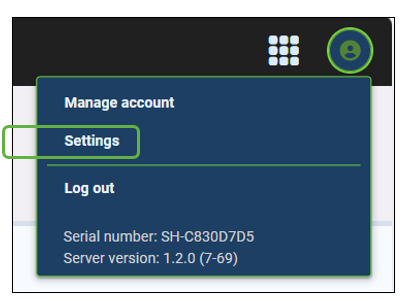
Email configuration is found in the profile menu under 'Settings'.
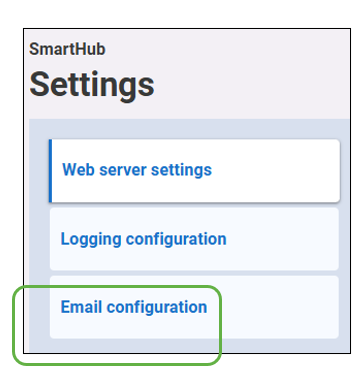
On the SmartHub settings page, select ‘Email configuration’
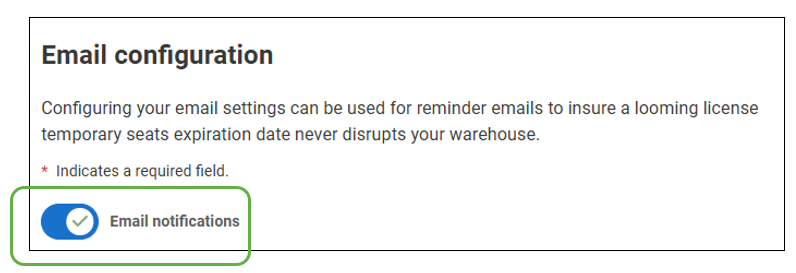
Turn on the slider to enable Email notifications and to activate the setup menu
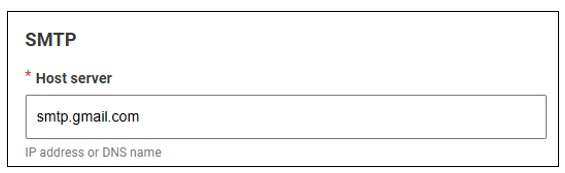
Host Server
'Host Server' is the hostname of your email providers SMTP server. Default is 'smtp.gmail.com'.
Other examples might be:
- smtp.office365.com
- smtp.yourcompany.com
- mail.yourcompany.local
- smtp.sendgrid.net
- smtp.mail.yahoo.com
- smtp.mail.me.com
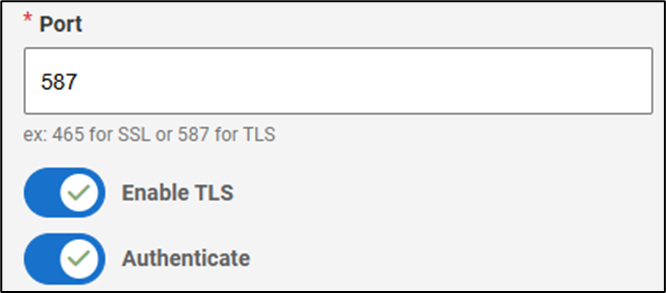
Port – The network port used for SMTP communication. Selects the correct connection method based on your email provider’s requirements.
Common Values:
- 587 — TLS/STARTTLS encrypted SMTP (recommended)
- 465 — SSL-encrypted SMTP
- 25 — Unencrypted or internal relay (typically inside corporate networks)
Enable TLS – Enables Transport Layer Security (TLS) encryption for secure communication with the mail server. When to use:
- Required by most modern email providers (Gmail, Office 365, SendGrid)
- Protects credentials and email content from being sent in plain text
SmartTip! When using port 587, TLS/STARTTLS must be enabled.
Authenticate – Enables SMTP authentication using a username and password.
When to use:
- Required for most cloud email services
- Optional for on-premises Exchange relay connectors that allow IP-based relay
SmartTip! Gmail, Office 365, Yahoo, and nearly all hosted email services require authentication.
Username – The account name used to authenticate with the SMTP server.
Examples:
- Full email address (e.g., 'alerts@yourcompany.com')
- For Gmail: the full Gmail address (e.g., 'example@gmail.com')
Password – The password associated with the SMTP account.
Special requirements:
- Gmail requires an App Password if the account uses 2-Step Verification
- Office 365 may require an App Password if MFA is enabled
- For hosted SMTP providers (SendGrid, Mailgun, etc.), this is typically an API key
SmartTip! SmartHub stores this password securely and uses it only for outbound email authentication.
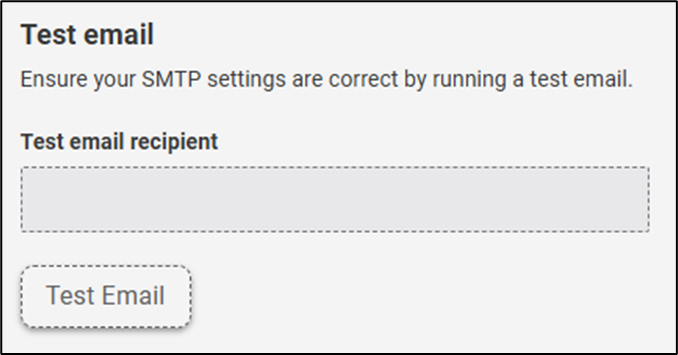
Test email – Used to ensure the SMTP settings are correct by running a test email.
SmartTip! You must 'Save Changes' at the bottom of the screen BEFORE you can test email.
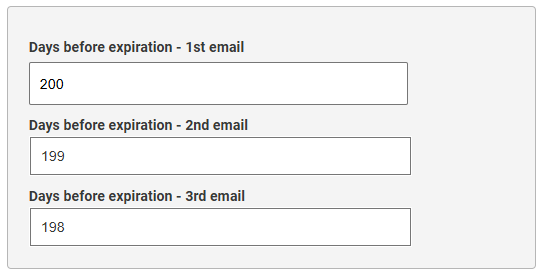
Configure email expiration reminders
Reminder emails provide three warnings before your temporary license expires. Just enter how many days before expiration you’d like each reminder sent. The first reminder must be at least 3 days out, and each one after that should be closer to the expiration date. First, second, and third emails default to 1 week, 2 days, and 1 day respectively to expiry.
Expiration email recipients
Type in the email addresses you'd like to receive reminder emails. Each email address must be delineated with a comma. Emails are sent at 1:00am local server time.
Share the post "License Expiration Email Alerts"