
Packages are a bundle of configurations and settings that can be automatically distributed to connected SmartBrowser devices. These packages can be used to create and manage profiles, custom injections, URL contents, security configurations, advanced file configurations, and device distribution.
Creating a Package
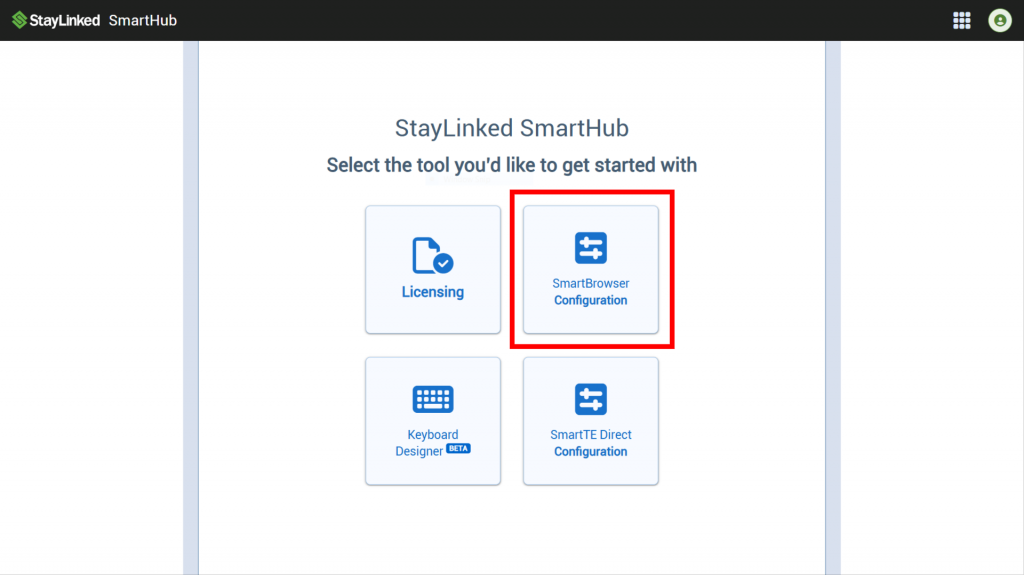
On the home page of SmartHub, select the 'SmartBrowser Configuration' button in the center of the screen.
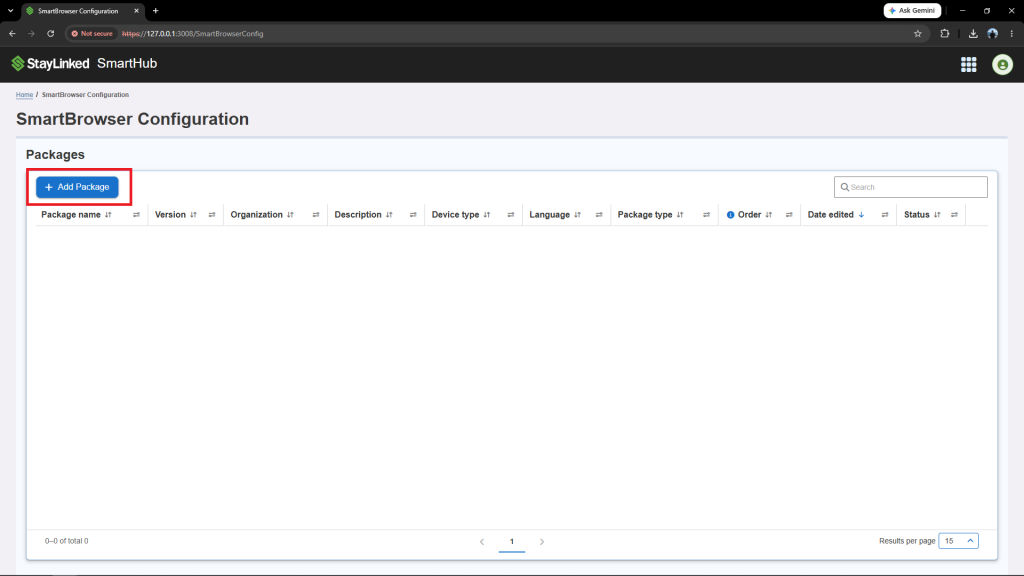
Select the 'Add Package' button to add a new package.
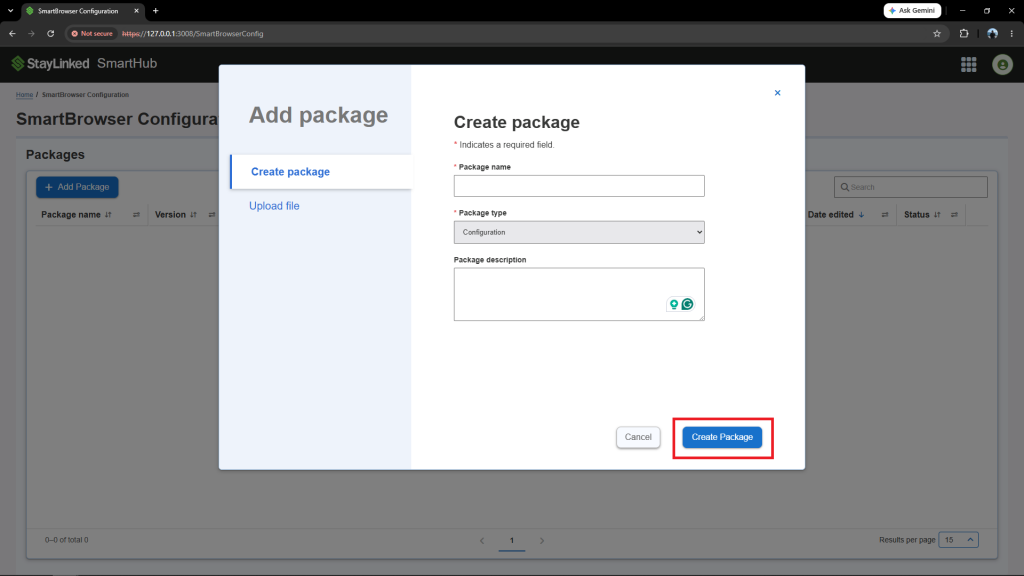
Each package requires a 'Profile Name' and 'Package Type'. 'Package Description' is optional and appears below the 'Profile Name' in the 'Create package' menu.
Once you have populated the required fields, select the 'Create Package' button.
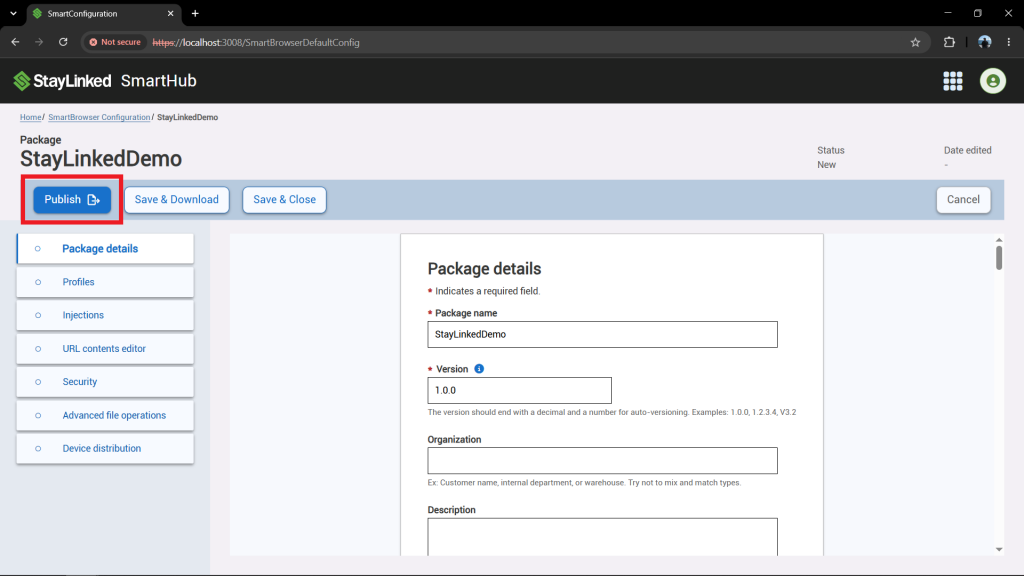
At this point, you are able to manage package configuration options, create and manage profiles, injection configurations, URL contents, security configurations, advanced file operations, and device distribution settings. For detailed information about these configurations, follow the links above.
Once the desired configuration options have been chosen for the new package, you can either publish the package to make it available to the SmartBrowser device or save and close the package, which saves the chosen configurations in SmartHub without making it available to the SmartBrowser device.
Publishing a Package
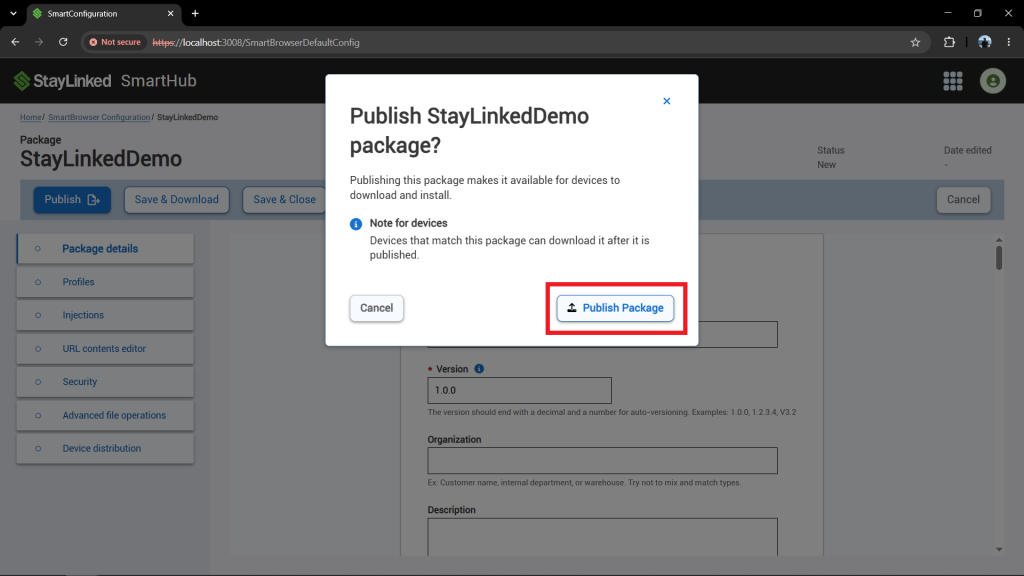
Once you are ready to distribute the package to the SmartBrowser devices, select the 'Publish' button.
A confirmation pop-up will appear. At the bottom of the pop-up, select 'Publish Package'.
Editing a Package
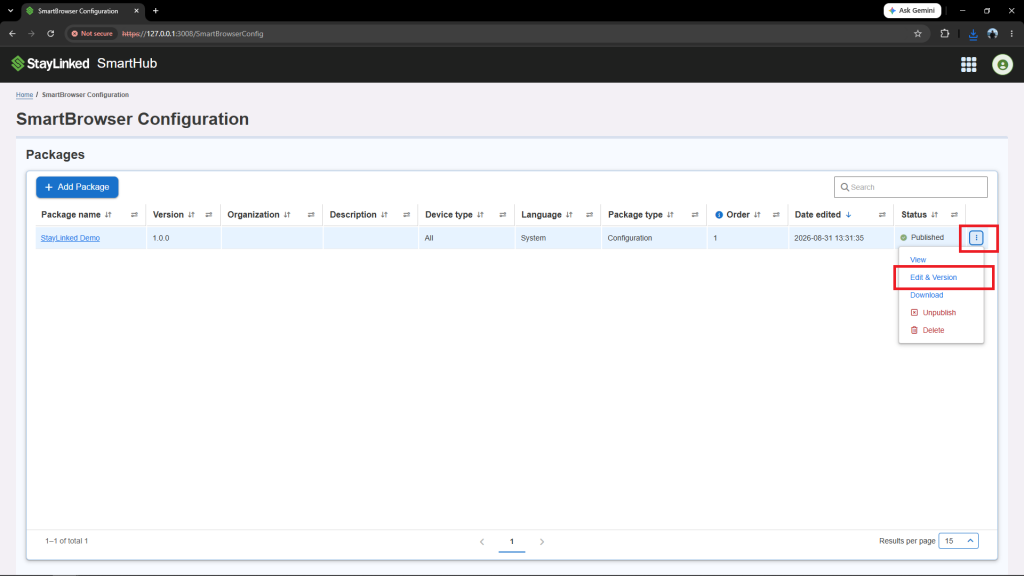
From the 'SmartBrowser Configuration' page, select the kebab menu icon to the right of the package you wish to edit and select 'Edit & Version'.
At this point, you are able to manage package configuration options, create and manage profiles, injection configurations, URL contents, security configurations, advanced file operations, and device distribution settings. For detailed information about these configurations, follow the links above.
Once the desired configuration options have been chosen for the new package, you can either publish the package to make it available to the SmartBrowser device or save and close the package, which saves the chosen configuration options as a draft in SmartHub.
Saving and Closing a Package
In order to save a package in SmartHub without distributing it to the SmartBrowser devices, select the 'Save & Close' button.
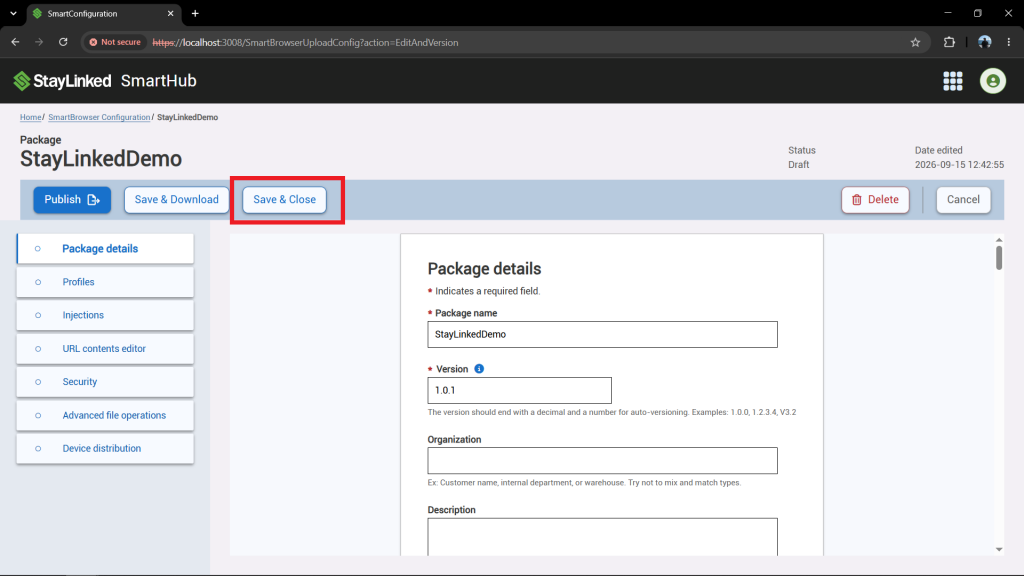
The package is now saved as a draft in SmartHub.
If the package has previously been published, the draft will be saved separately from the published package. Once the draft is published, the chosen configuration options will be applied to the published profile and the draft will be deleted.
Deleting a Package
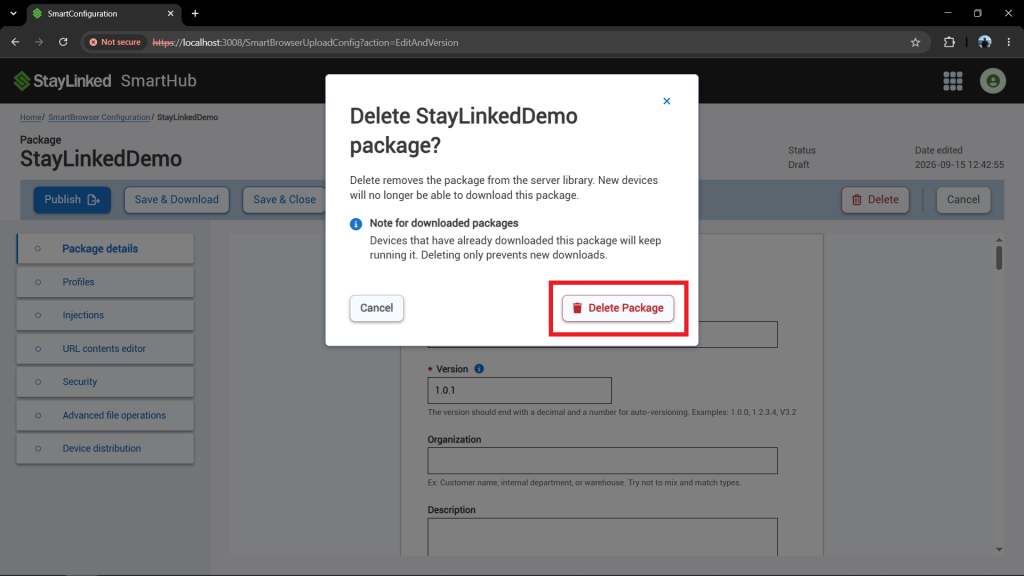
From the 'SmartBrowser Configuration' page, select the kebab menu icon to the right of the package you wish to delete and select 'Delete'.
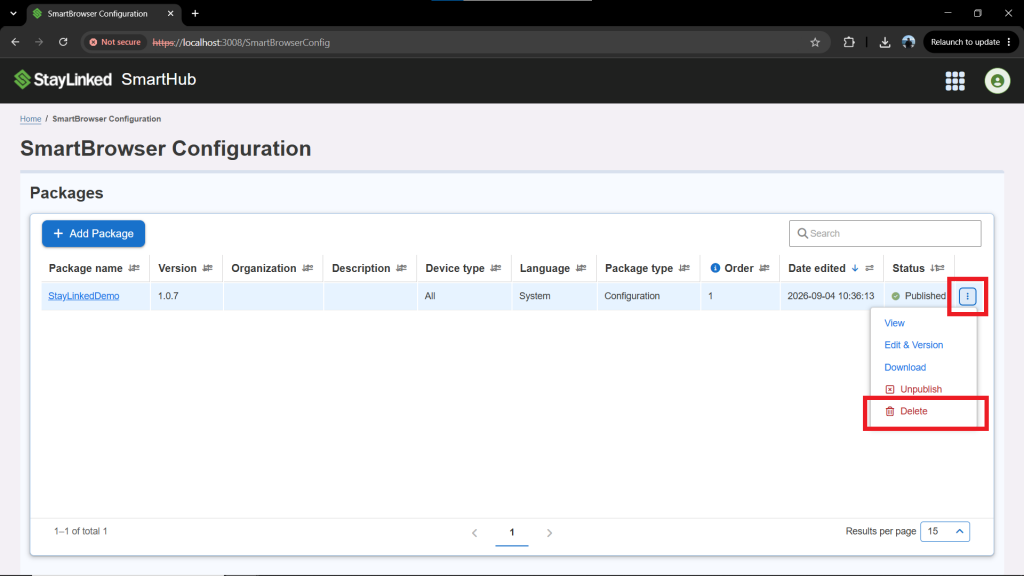
A confirmation pop-up will appear. At the bottom of the pop-up, select the 'Delete Package' button to permanently delete the package.
Share the post "Creating and Managing Packages"