
Profiles point SmartBrowser to a specific web address and control how the SmartBrowser device behaves within the profile.
Adding a Profile
Begin by creating or editing the package where the new profile will be located. Detailed instructions on creating and editing packages can be found in the "Creating and Managing Packages" article.
Once you are on the package editing screen, select the 'Profiles' tab.
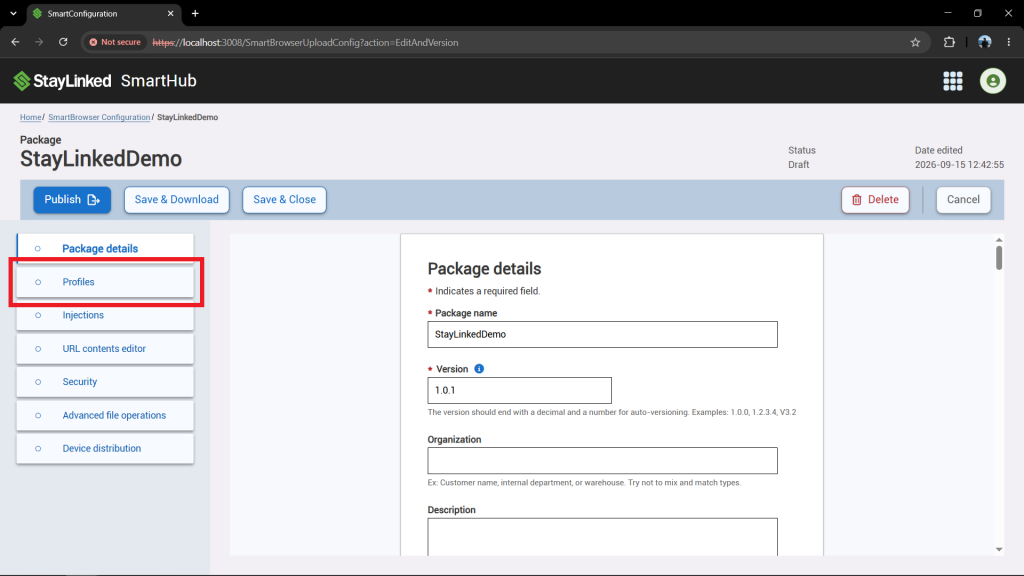
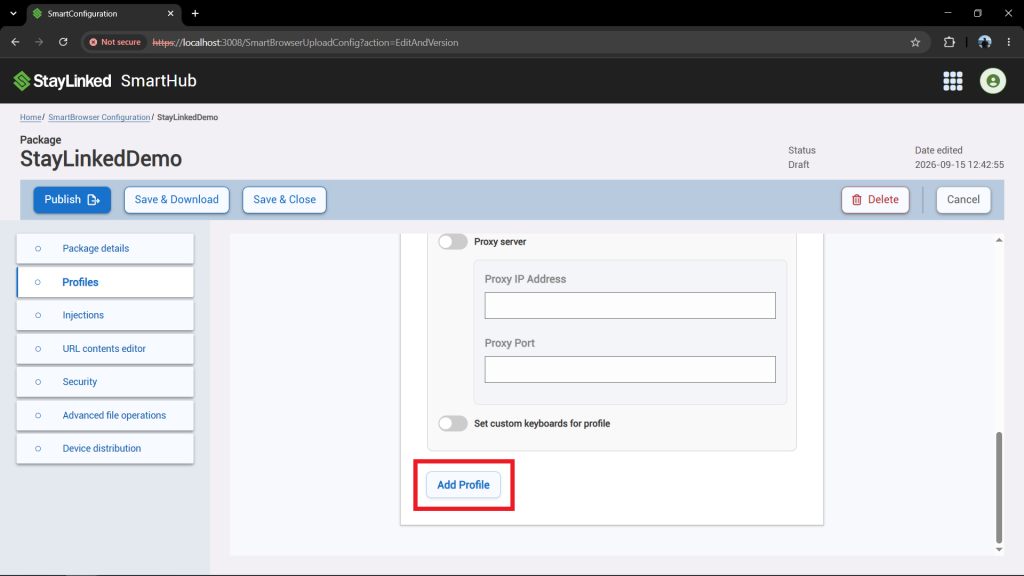
Scroll to the bottom of the screen and select the 'Add Profile' button at the bottom of the screen to add a new profile.
From here, you are able to manage the profile configuration options. Detailed information about these configurations can be found in the "Profile Configuration Options" article.
These configuration options are saved when the package is either saved or published.
Deleting a profile
Begin by editing the package where the profile is located. Detailed instructions on creating and editing packages can be found in the "Creating and Managing Packages" article.
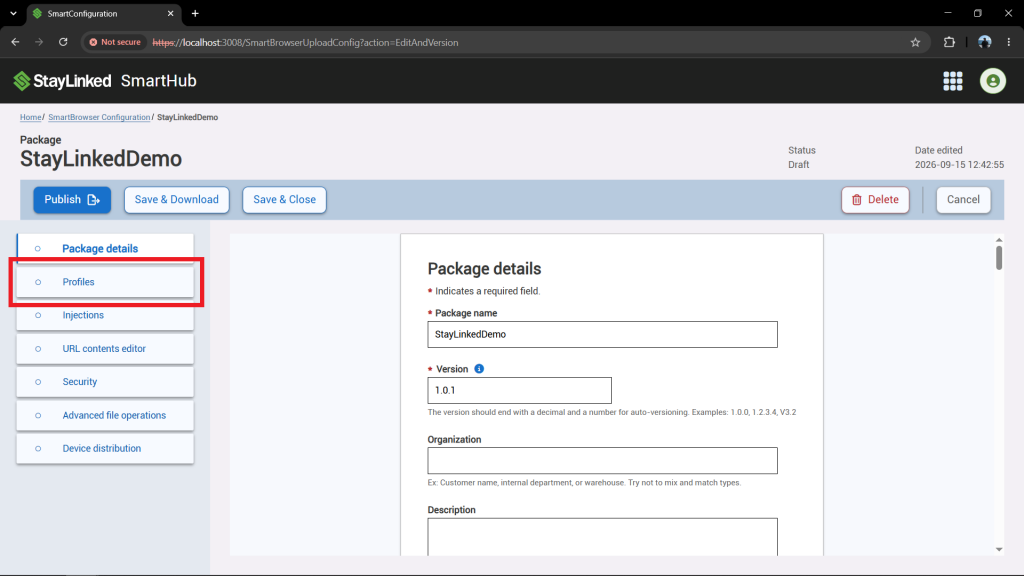
Once you are on the package editing screen, select the 'Profiles' tab.
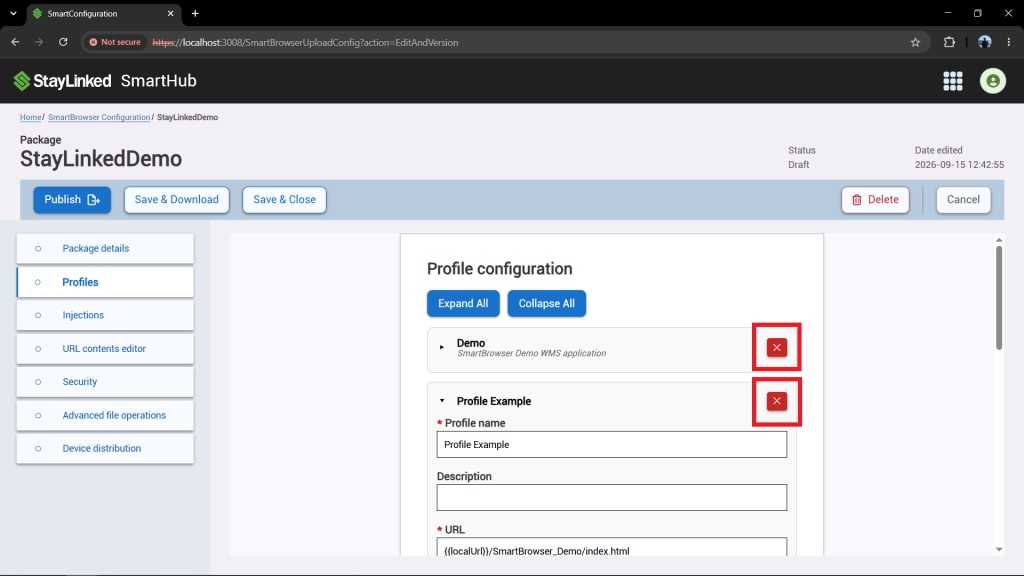
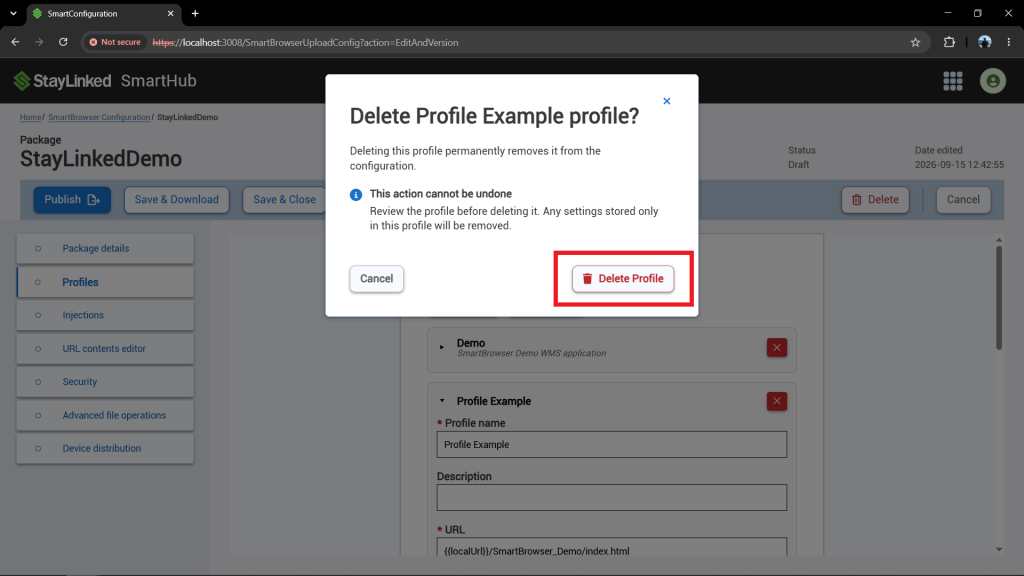
Select the red 'X' button next to the profile you want to delete.
A confirmation pop-up will appear. Select the 'Delete Profile' button to permanently delete the profile.
Share the post "Adding and Managing Profiles in SmartHub"