
In order to download packages from SmartHub, you must configure the SmartHub settings on the SmartBrowser device. The simplest way to do this is to use the Scan to Configure option.
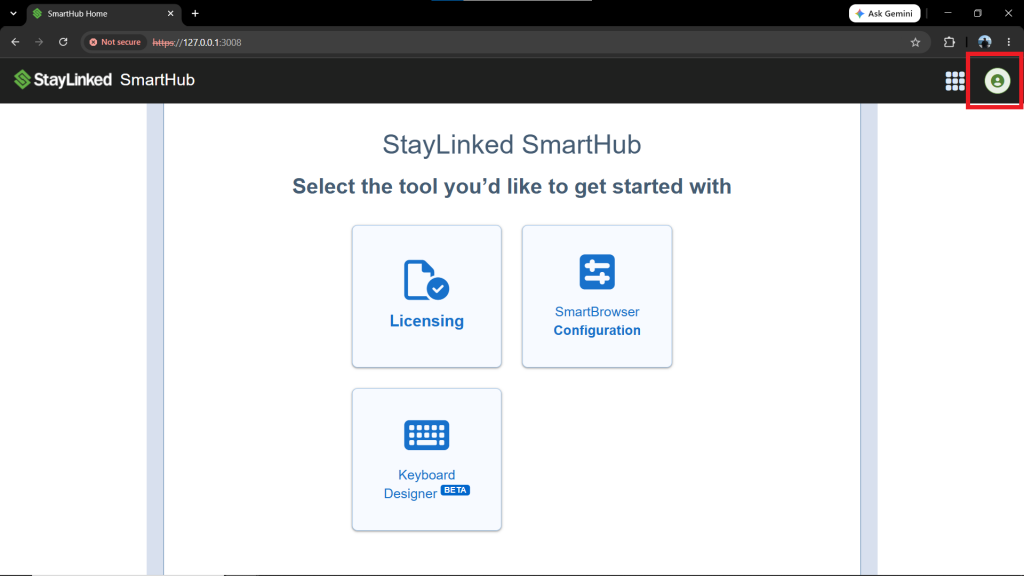
In SmartHub, start by selecting the profile icon in the top-right corner of the screen.
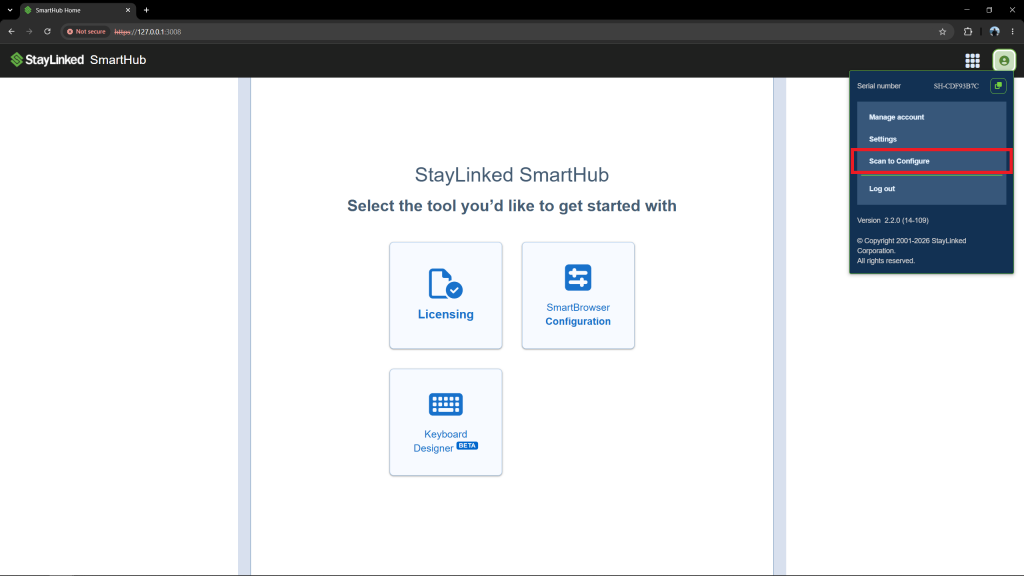
The pop-up admin menu will appear under the profile icon. Select the "Scan to Configure" option.
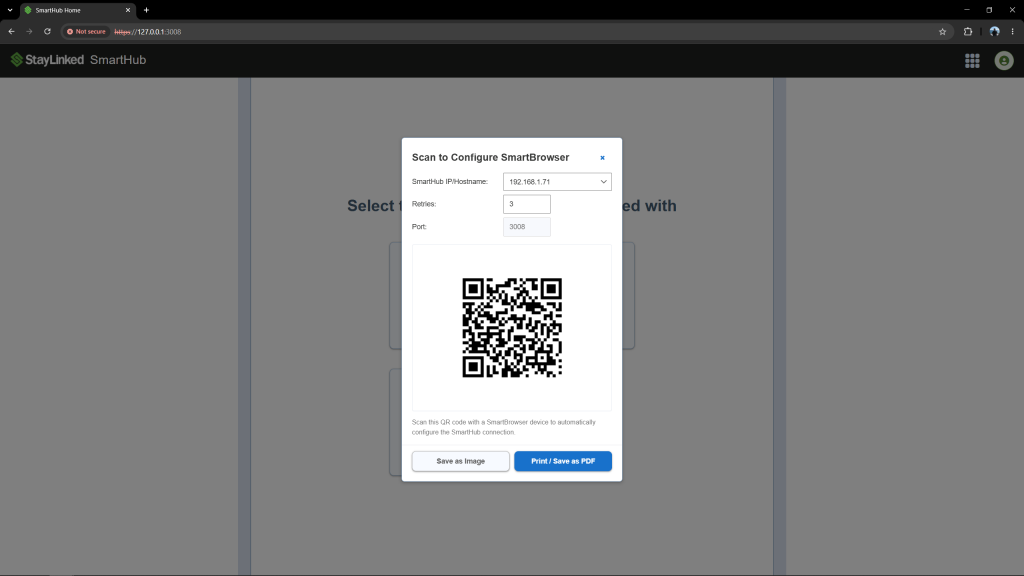
The 'Scan to Configure SmartBrowser' menu will appear. This menu displays the SmartHub IP address, the number of check-in retries, and the SmartHub port.
On the SmartBrowser device, enter admin mode. Details on how to do this can be found in the "Admin Mode" article.
Next, select the Hamburger menu located in the top right of the screen.
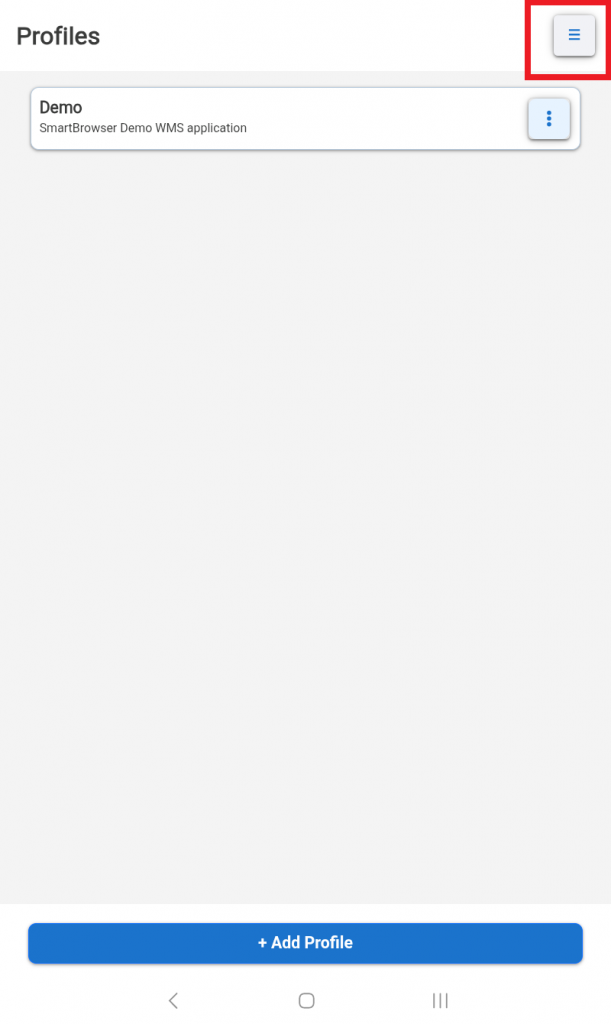
From here, select the 'SmartHub Settings' button.
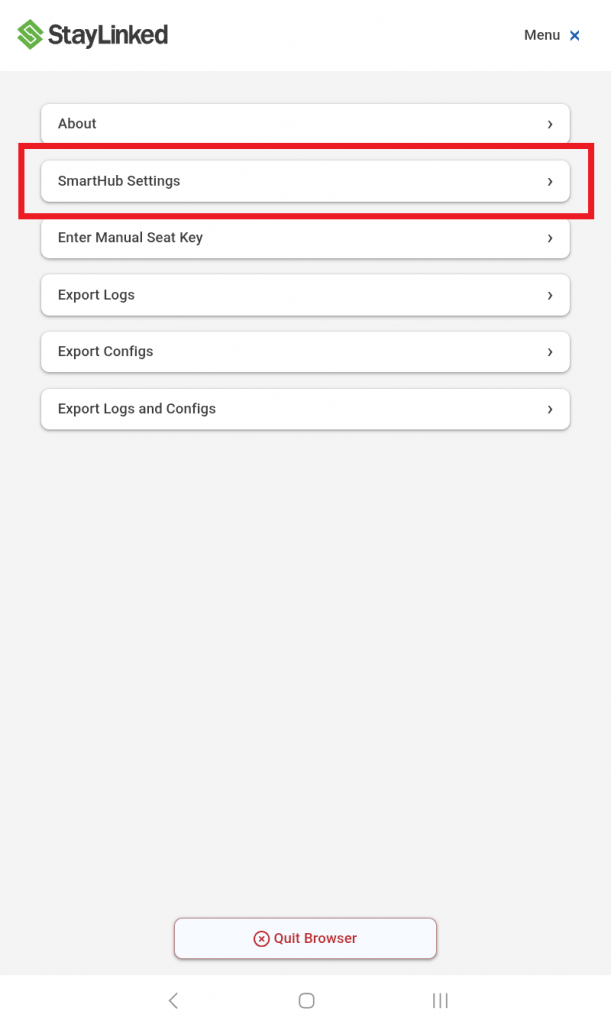
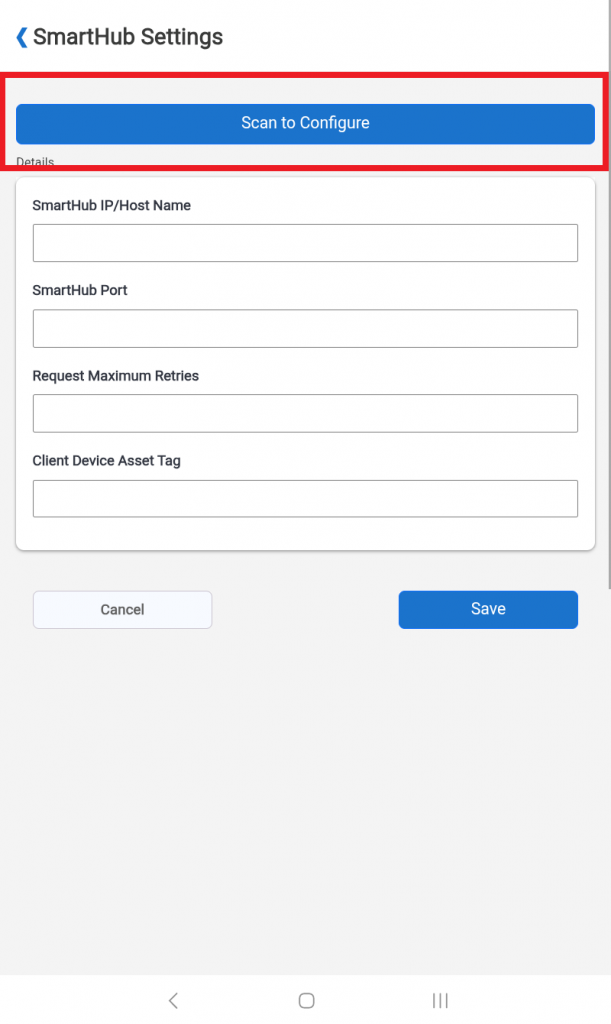
Next, select the 'Scan to Configure' button at the top of the screen.
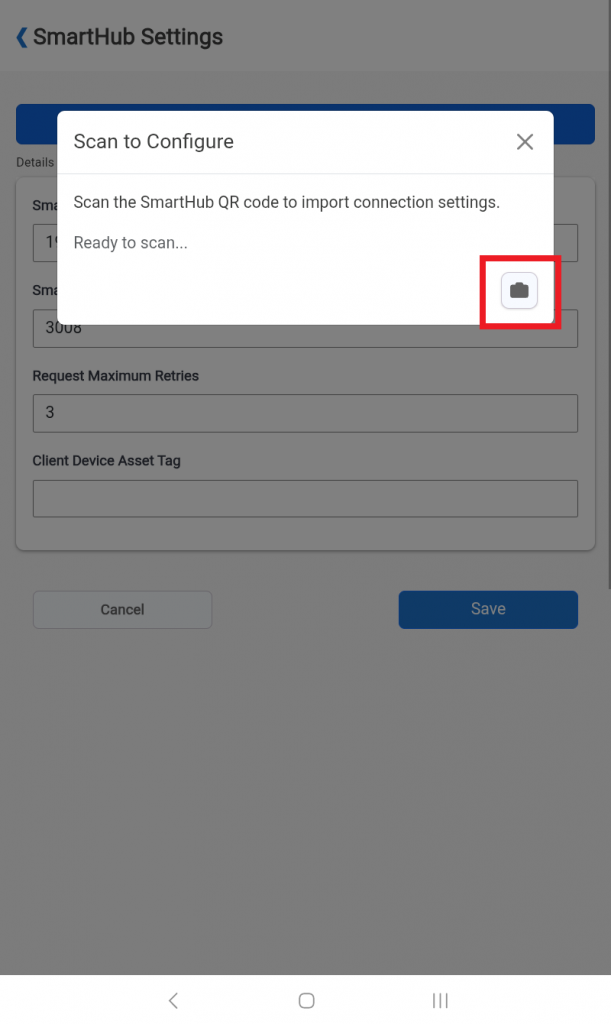
This will open a pop-up menu at the top of the screen. Select the camera icon located at the bottom right of the pop-up menu.
This will open the SmartBrowser device's camera. Point the SmartBrowser device at the QR code displayed in SmartHub. The configurations will be automatically applied in SmartBrowser.
To save these configurations, select the 'Save' button.
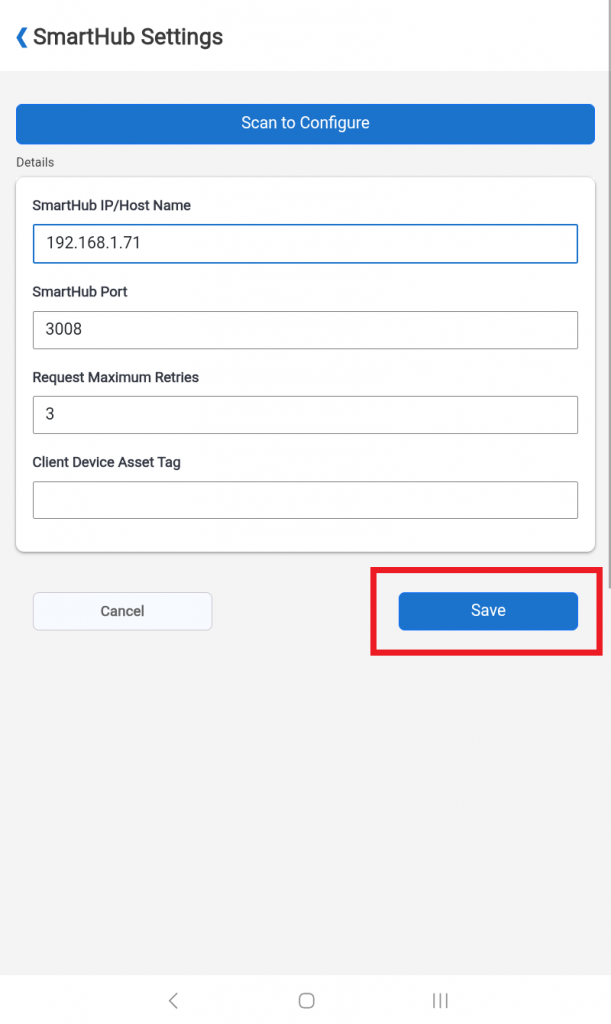
The package settings will now be applied once the current session ends.
Share the post "Scan to Configure"