
Package security configurations control how SmartBrowser handles invalid SSL certificates as well as other certificate settings. The supported file types are .pem, .crt, and .cer.
Uploading a Certificate File
Begin by creating or editing the package where the profile is located. Detailed instructions on creating and editing packages can be found in the "Creating and Managing Packages" article.
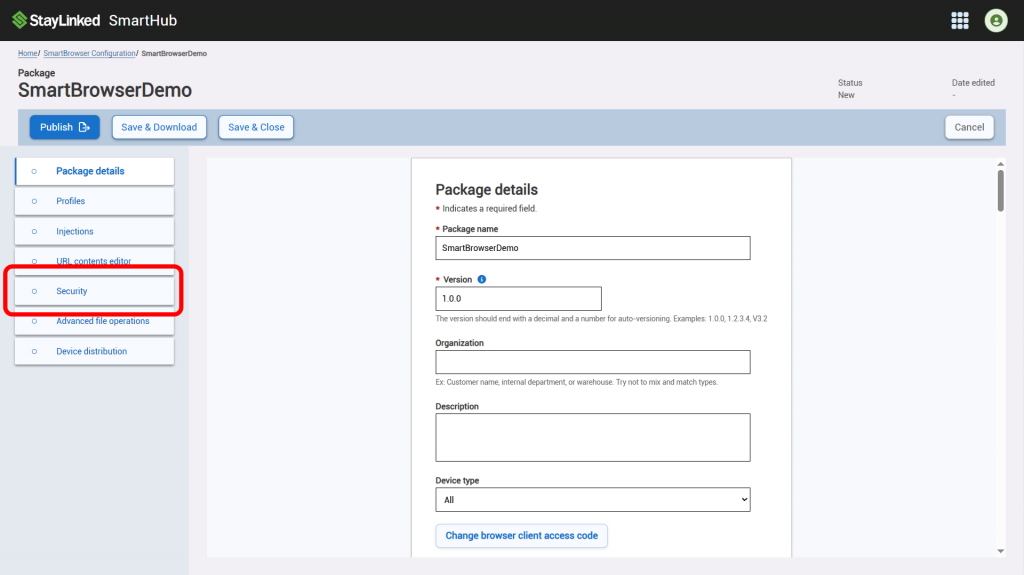
Next, select the 'Security' tab.
Select the 'Certificate Drop Zone' shown below. This will open the system's file explorer.
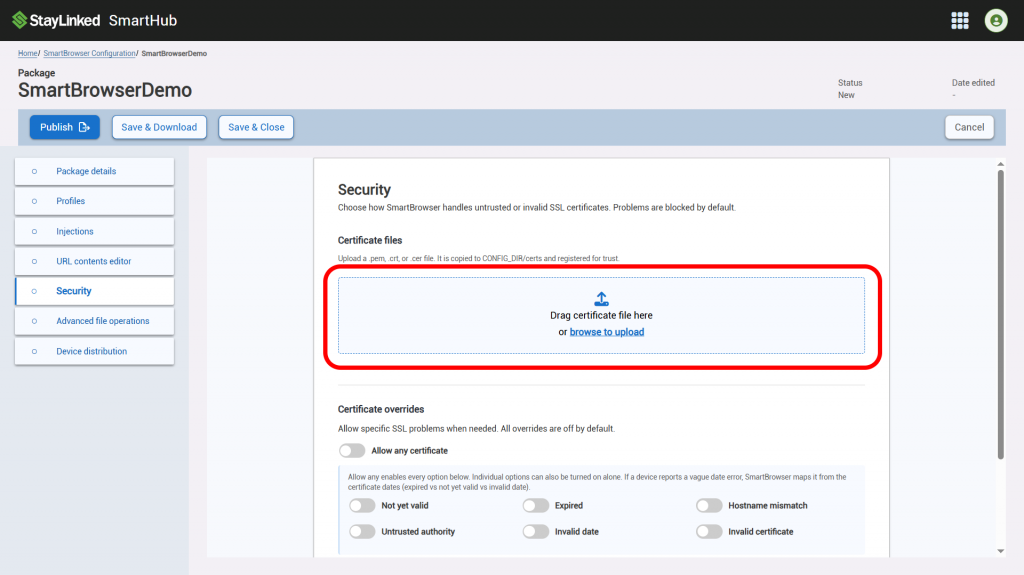
Select the desired certificate file in File Explorer. The supported formats are .pem, .crt, and .cer.
The certificate file is now copied to CONFIG_DIR/certs and registered for trust. The certificate will also appear under the 'Certificate Drop Zone'.
Certificate Overrides
Certificate overrides allow specific SSL problems when needed. Below is a list of all available overrides. All overrides are off by default.
Allow any certificate
When enabled, SmartBrowser accepts any SSL certificate error and turns on all SSL problem allowances listed below. It is recommended to only enable for lab or temporary testing. Fingerprints or uploaded certificates are preferred for production.
Not yet valid
When enabled, certificates that are not yet valid (start date in the future) are accepted. This does not allow expired certificates.
Expired
When enabled, expired certificates (end date in the past) are accepted. Devices that report expired certs as a generic date error are also covered.
Hostname mismatch
When enabled, certificates whose hostname does not match the site URL are accepted.
Untrusted authority
When enabled, certificates from an untrusted or unknown certificate authority, including self-signed certificates, are accepted.
Invalid date
When enabled, certificates with an ambiguous or other date validity problem that is not clearly expired or not yet valid are accepted.
Invalid certificate
When enabled, certificates that Android reports as generally invalid are accepted.
Advanced certificate management
SHA-256 fingerprints
Select the 'Add SHA-256 fingerprint' button to add a SHA-256 fingerprint.
SHA-1 fingerprints
Select the 'Add SHA-1 fingerprint' button to add a SHA-1 fingerprint.
Embedded certificates (PEM)
To add a PEM certificate, select the 'Add PEM certificate' button and paste a full PEM certificate, including BEGIN and END lines, in the text box directly above the button.
Share the post "Managing Security Configurations"