
When deploying SmartBrowser we recommend using one of the following methods (based on what the EMM/MDM platform supports):
- Package/Job deployment
- Enterprise application install
Creating the SmartBrowser Configuration
SmartBrowser configuration is created using the Configuration tool in SmartHub.
Configuration files are saved as .sbp files.
These configuration files are then deployed via the EMM/MDM platform.
Deploying the Configuration to Android Devices
Android 10 and below
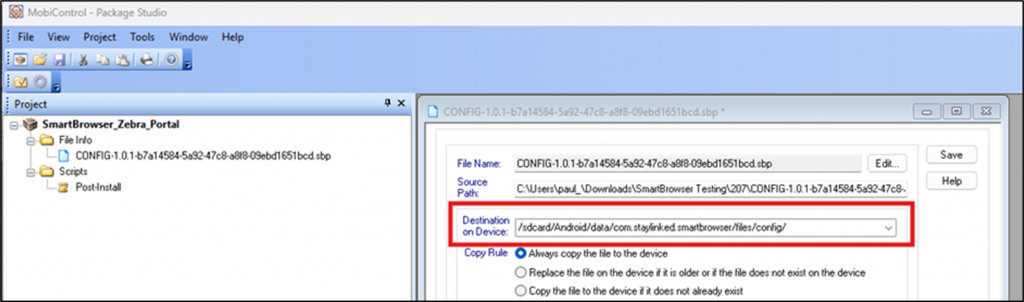
For devices running Android 10 or earlier, the .sbp configuration file can be deployed directly into the SmartBrowser working directory:
/storage/Android/data/com.staylinked.smartbrowser/files/config
Android 11 and above
For devices running Android 11 or later, configuration files cannot be deployed directly into the working directory due to scoped storage restrictions.
To support importing configuration files, SmartBrowser must be granted the permission:
MANAGE_EXTERNAL_STORAGE
Import Behavior on Android 11+
When SmartBrowser launches on Android 11+ it will:
- Automatically detect any .sbp files in the supported pre-staged locations (see table below)
- Import them into the working directory
- Delete the files from the original staging location after a successful import
Supported pre-staged import locations
SmartBrowser can import .sbp files from the following directories:
| Directory | Supported devices |
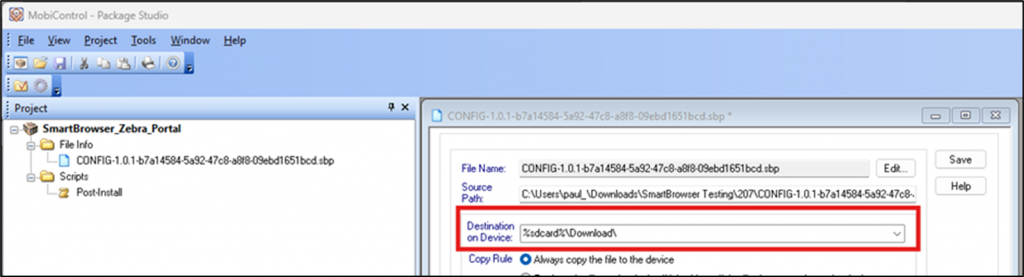
| /sdcard/download | Any device |
| /sdcard/download/StayLinked | Any device |
| /enterprise/usr | Zebra devices only |
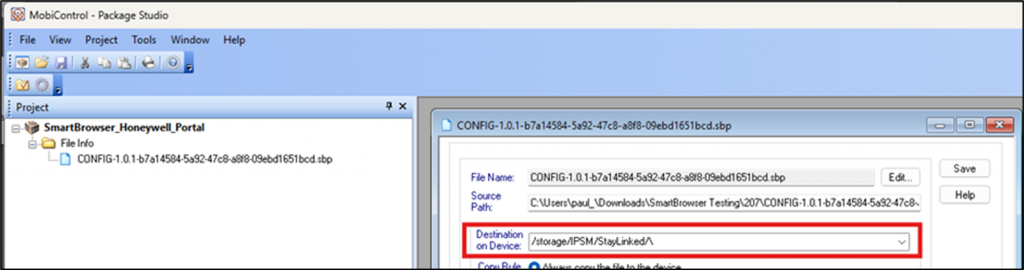
| /storage/IPSM/StayLinked/ | Honeywell devices only |
SmartTip! This import method will not work for any SmartBrowser client downloaded from the Google Play Store due to Google-enforced restrictions.
For any issues with the import of the configuration please see the troubleshooting section of this article.
Adding SmartBrowser Using SOTI MobiControl
SmartBrowser can be deployed through SOTI MobiControl using either:
- Package Deployment
- Enterprise Application Store
Package Deployment
SOTI MobiControl no longer requires a package to be built with MobiControl Package Studio in order to deploy an Android app.
Creating SmartBrowser Package
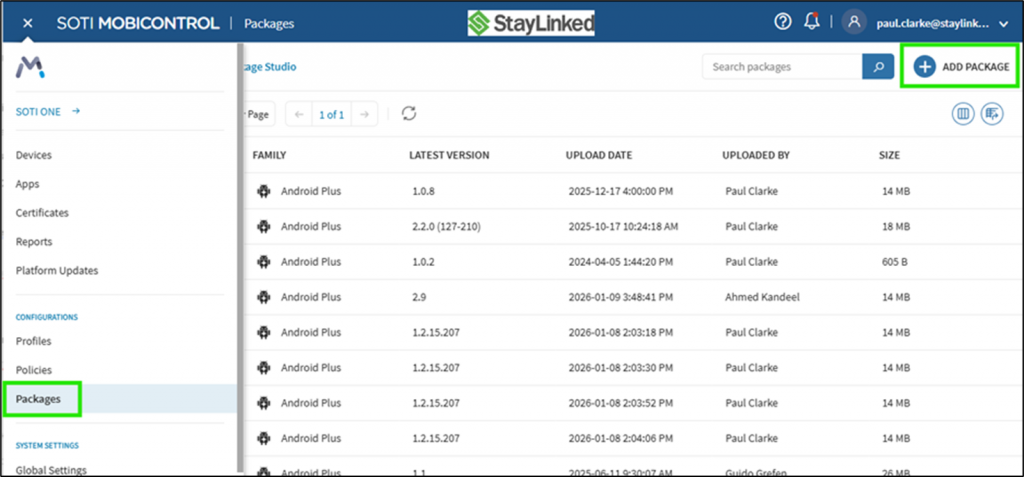
In the SOTI MobiControl console, open the menu shown by 3 lines (top-left).
Navigate to: Configurations → Packages
Select 'Add Package' in the top right corner
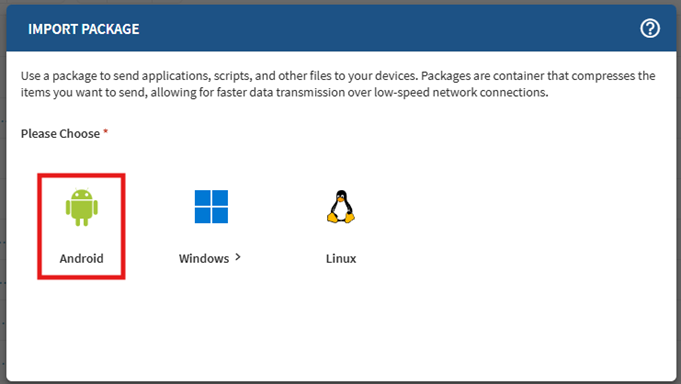
Choose 'Import' > 'Android'.
Upload one of the following:
- An Android .apk file
- A Package Studio .pcg file
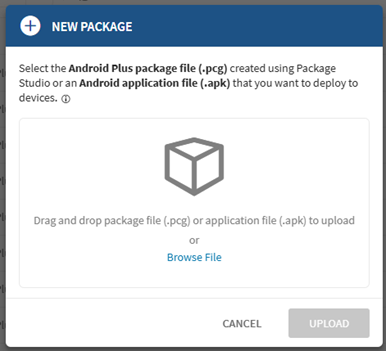
When a .apk file is uploaded, MobiControl automatically detects and extracts the application version number from the application manifest.
Optional: Using Package Studio
MobiControl Package Studio can still be used to deploy SmartBrowser if preferred, or if needed for any of the following:
- Custom version number
- Consistency with existing deployments
Enterprise Application Deployment
SmartBrowser can be deployed through the Enterprise App Store by adding it to an App Policy in SOTI MobiControl.
Adding SmartBrowser to an Existing Policy
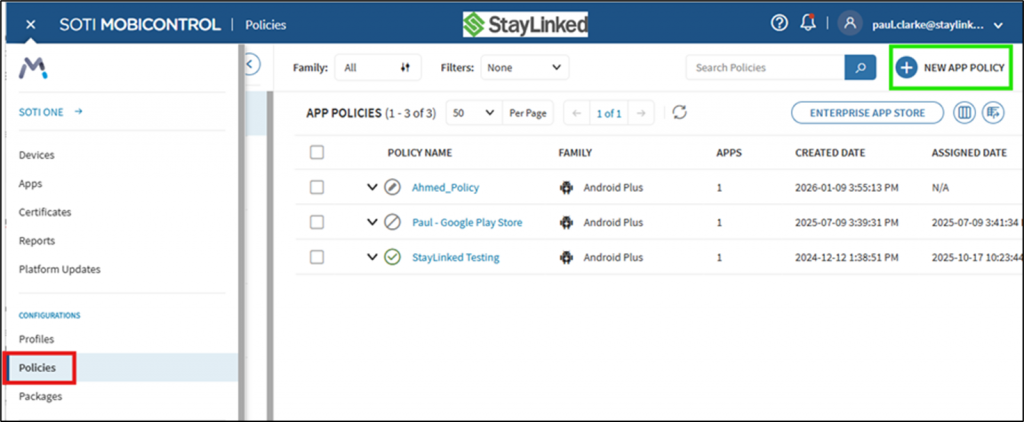
Open the main menu (top-left three-line icon).
Select 'Policies'
Select the policy to update
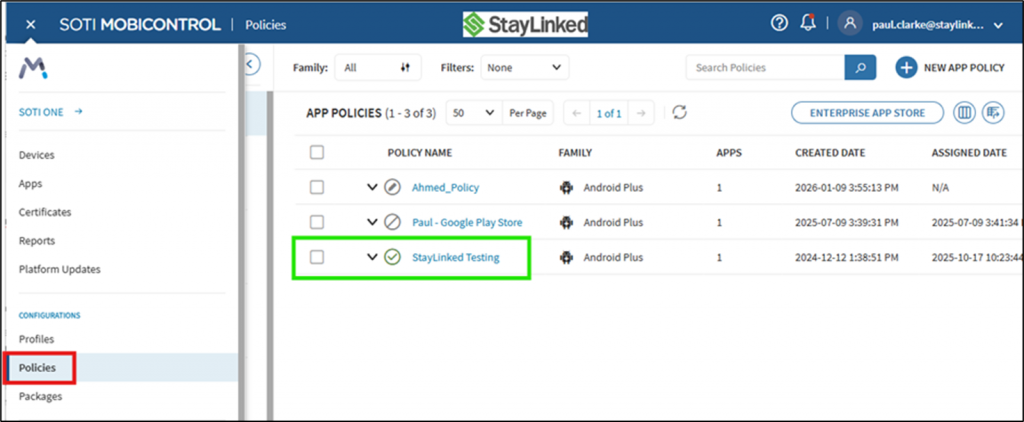
In the policy pop-up window, click the pencil (Edit) icon.

Creating a new App Policy (if required)
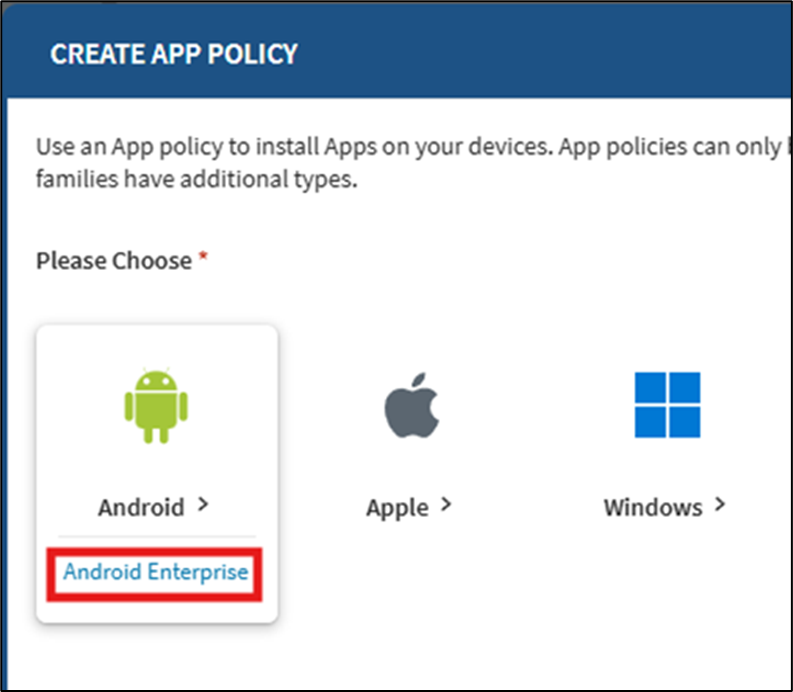
In 'Policies' select New App Policy (top-right)
Choose 'Android' > 'Android Enterprise'
Uploading SmartBrowser to the Enterprise App Store
Open the' Apps' tab.
Click the '+' icon (Add application).

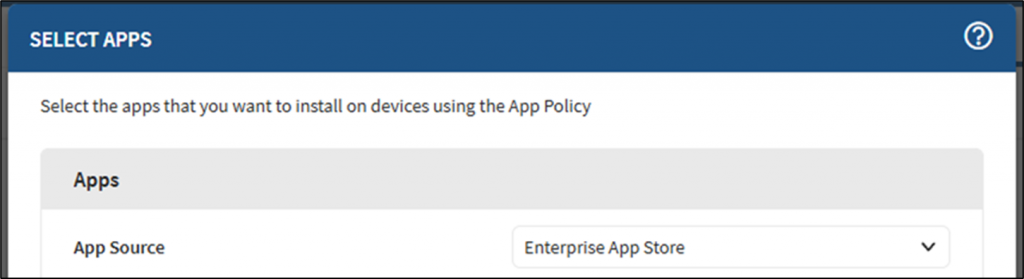
Set 'App Source' to 'Enterprise App Store'
Click 'Browse file' and select the SmartBrowser .apk downloaded from the StayLinked Download Portal.
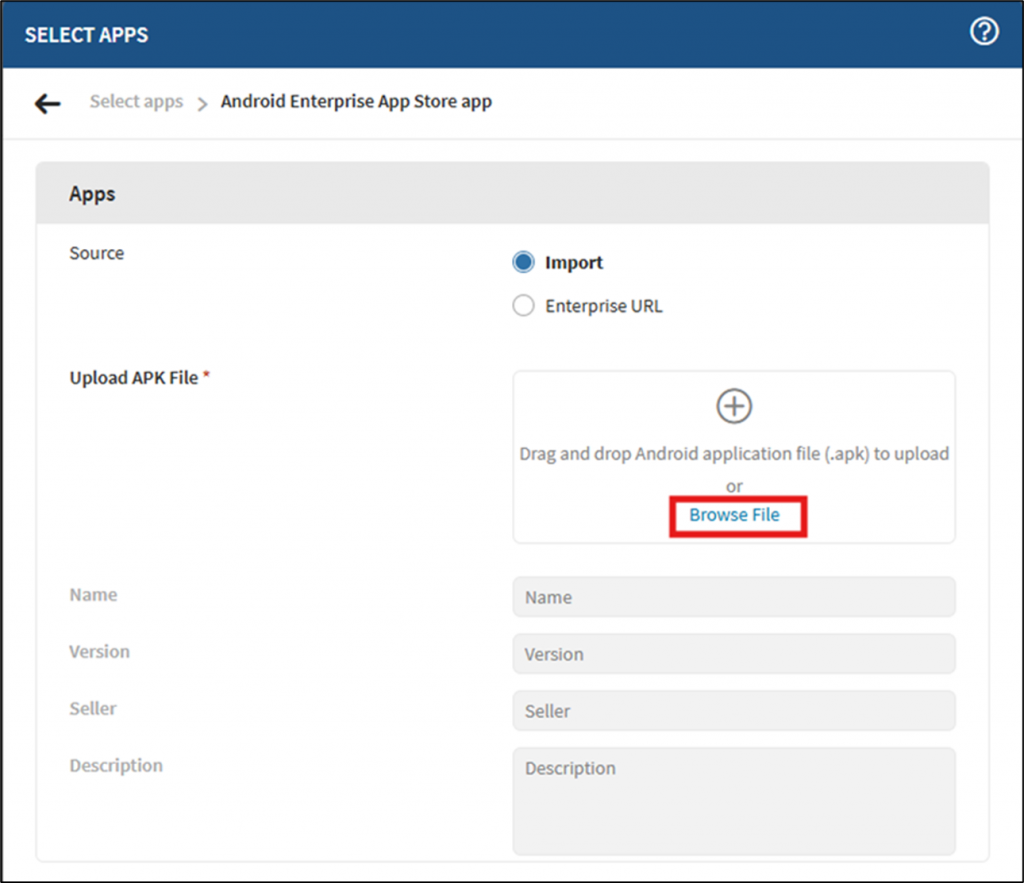
After the upload completes application details (such as Application Name and Version) will populate automatically. Click 'Save' to finish.
The Enterprise application can now be assigned to a group, upon assigning the application will proceed to download and install.
Deploying Configurations Using Packages
SmartTip! The .sbp configuration file must be created before completing this step.
To deploy a SmartBrowser configuration using package deployment, SOTI MobiControl Package Studio must be used. This can be obtained from the SOTI console or website.
Creating the configuration package
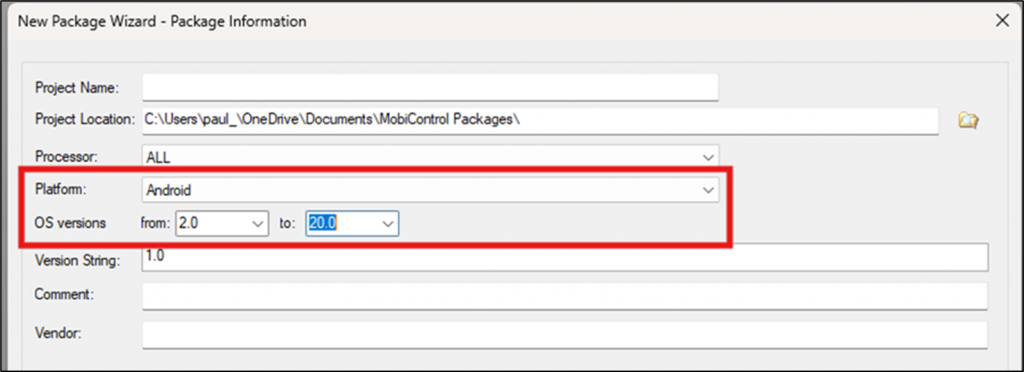
Create a new package and configure the following:
- Operating System: Android
- OS Level: Set this high enough to support the target device(s)
Add the .sbp configuration file to the package
Define the destination file path based on:
- The Android OS version, and
- The device manufacturer (e.g., Zebra, Honeywell, etc)
Android 10 and Below
Android 11 and Above
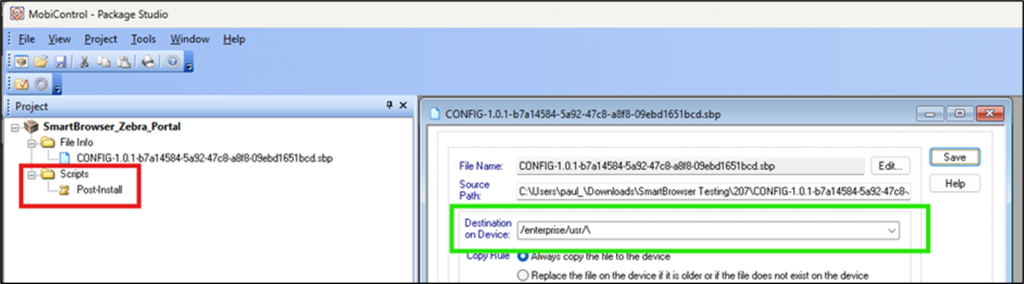
Zebra devices only
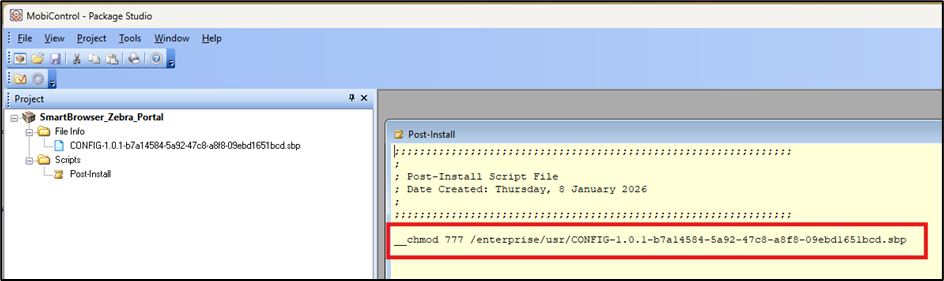
When using Zebra-specific directories, an additional post-install script is required to update file permissions so the .sbp configuration file can be imported by SmartBrowser.
The following command is used:
__chmod 777 /enterprise/usr/<filename.sbp>
Replace <filename.sbp> with the actual name of the SmartBrowser configuration file.
Honeywell Devices only
When using Honeywell-specific directories, there is no requirement for any additional scripting to allow the .spb file to be imported
Deploying the package in SOTI MobiControl
Once the package has been built:
Upload the package to SOTI MobiControl.
Create a Profile that includes the configuration package.
Assign the profile to the target devices to deploy the SmartBrowser configuration.
After deployment, the configuration will be available for import by SmartBrowser on the assigned devices upon start-up of the SmartBrowser application.
SmartTip! The SmartBrowser apk file can also be added to any of the above packages if required to create a singular package install.
Adding SmartBrowser Using 42 Gears
SmartBrowser can be deployed through SOTI MobiControl using either:
- Job Deployment, or
- SureMDM App Store
Job Deployment
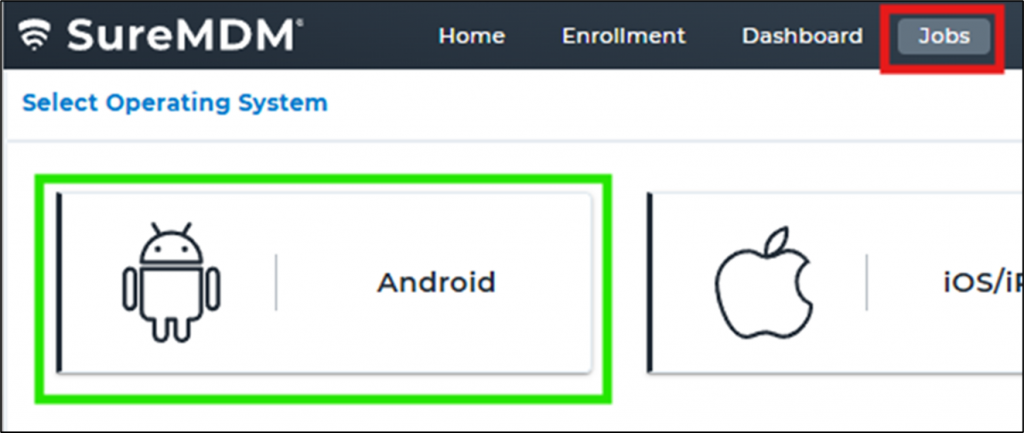
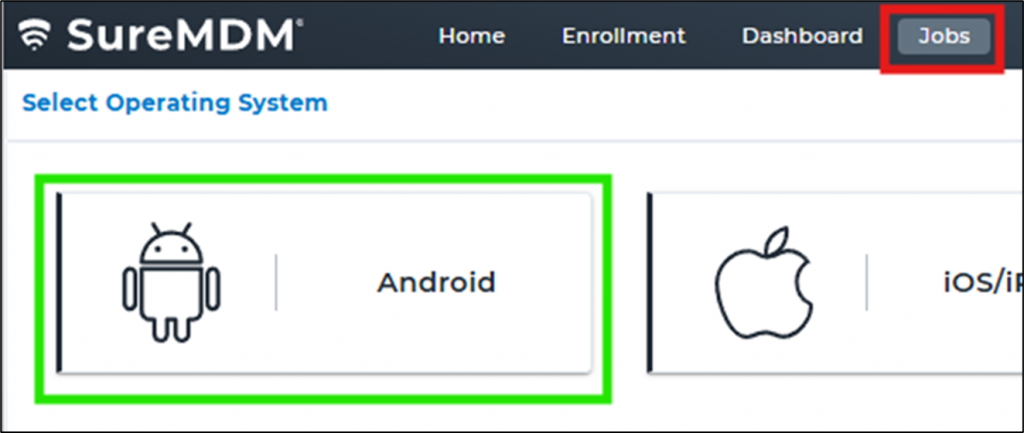
In the SureMDM Console, go to the Jobs tab.
Select 'Android'.
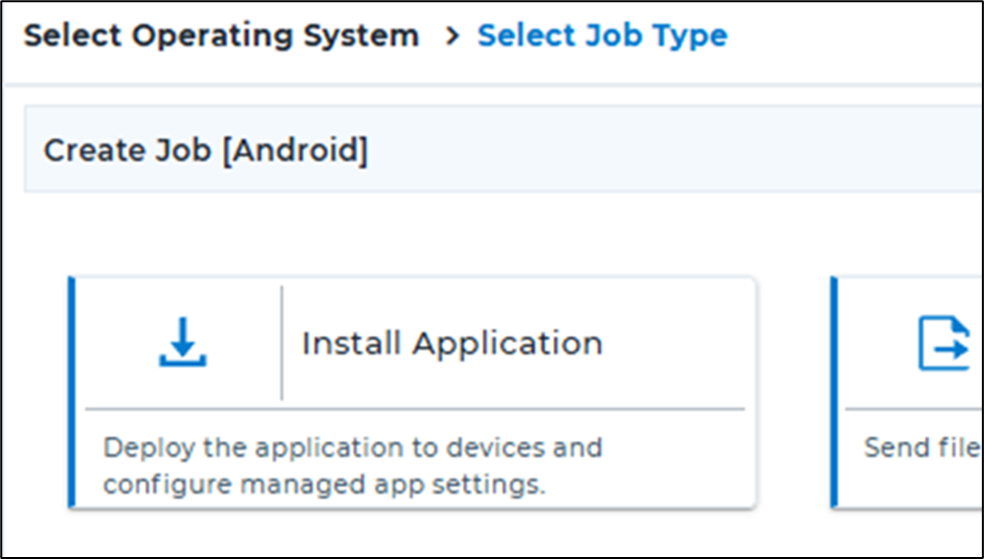
In 'Create Job [Android]', choose 'Install Application'.
Enter a 'Job Name'.
Select 'Add App'.

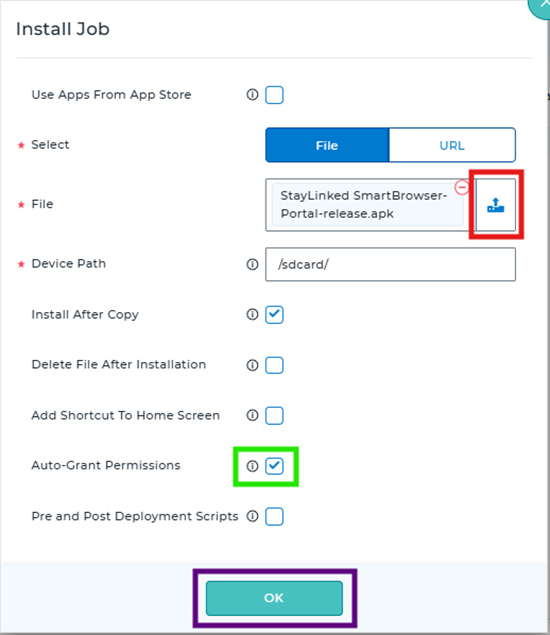
In the 'File' section, click the 'browse/upload' icon and locate the SmartBrowser APK downloaded from the StayLinked Downloads Portal.
After the APK finishes uploading, enable Auto-Grant Permissions to automatically grant all app permissions during installation.
Click 'OK' to continue.
A security warning will appear asking if you want to continue.
Tick the confirmation checkbox.
Click 'OK'.
Click 'Save' to finish creating the job.
SureMDM App Store
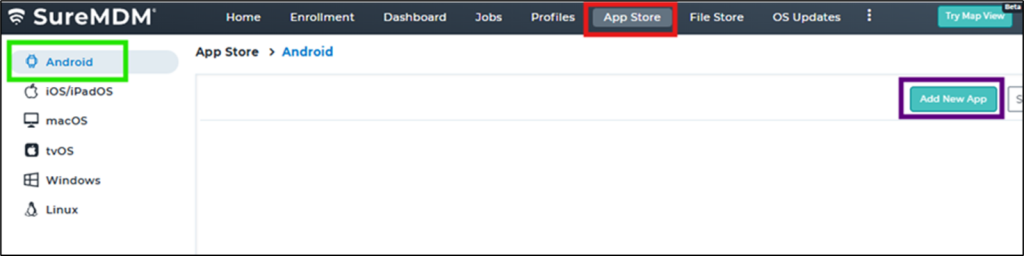
In the management console, select the 'App Store' tab from the top menu.
The Android section automatically appears.
Click 'Add New App' in the top-right corner.
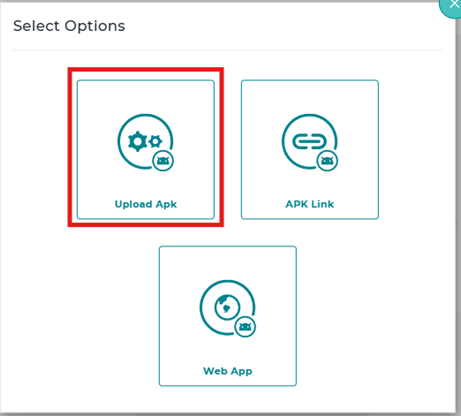
In the pop-up window, select 'Upload APK'.
Browse to and select the SmartBrowser APK downloaded from the StayLinked Downloads Portal.
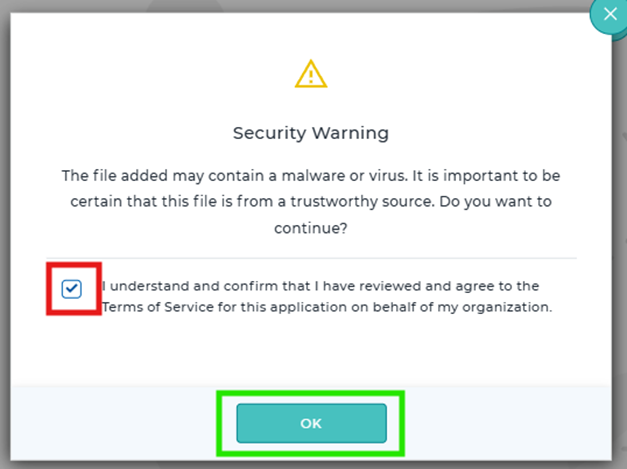
A security warning appears.
Check the confirmation box.
Click 'OK' to continue.
The upload will begin and may take several minutes to complete.
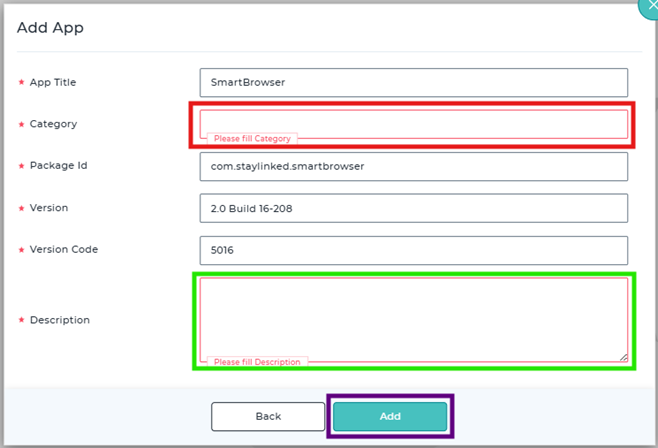
Once the upload finishes, complete the required fields:
- Category: Browser (or Admin Preference)
- Description: Repeat the application version number (or Admin Preference)
Click 'Add' to complete the process.
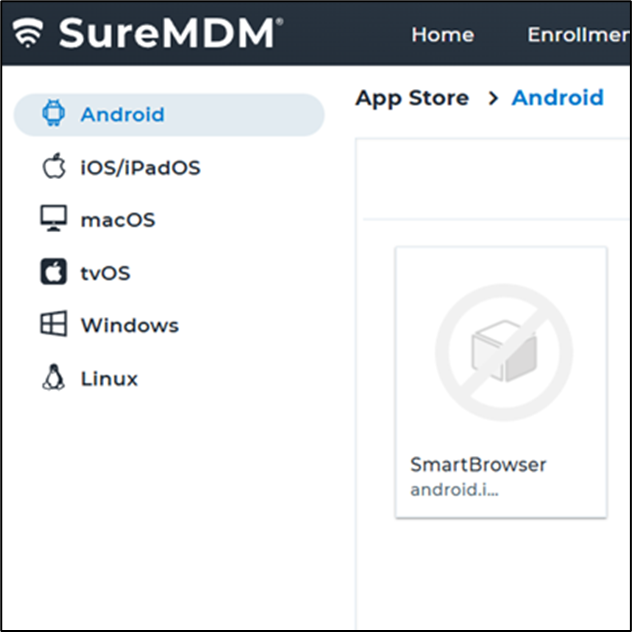
If the upload is successful, SmartBrowser will appear in the App Store and be available for deployment.
Adding SmartBrowser Configurations Using 42 Gears
Adding the configuration for SmartBrowser to 42 Gears can be performed using 'Jobs'.
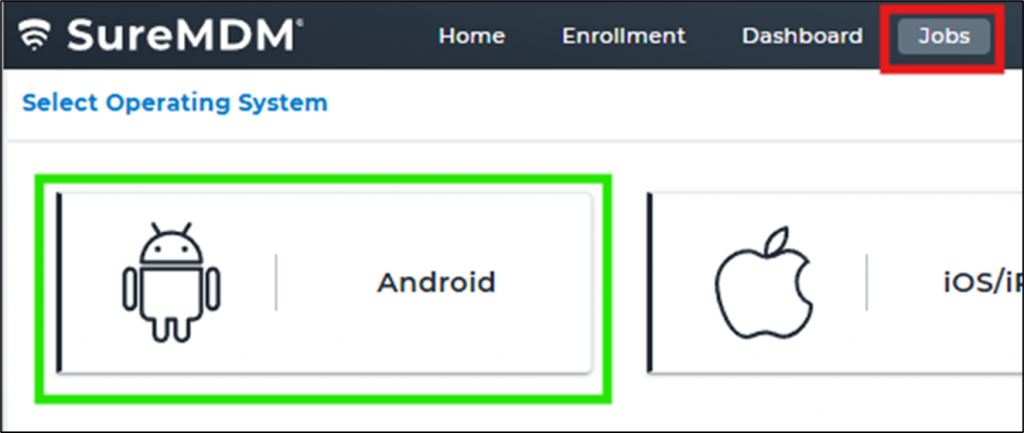
In the SureMDM Console, go to the 'Jobs' tab.
Select Android.
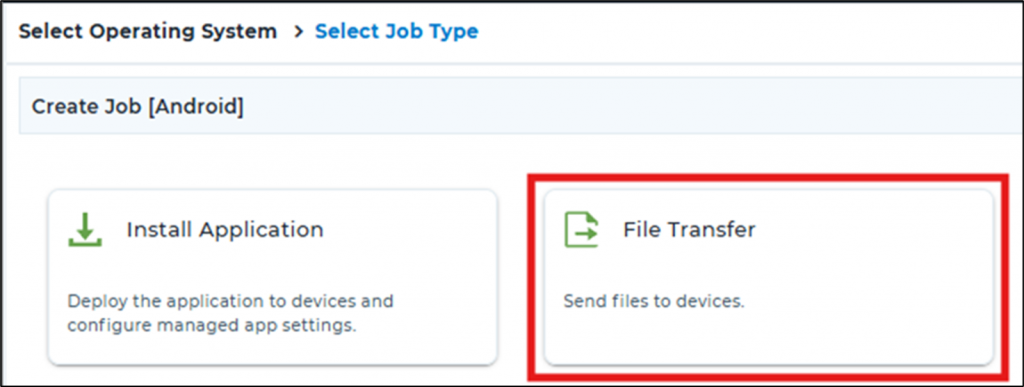
In Create Job [Android], choose 'File Transfer'.
Enter a Job Name.
Select 'Add'.
In the File section, click the 'browse/upload icon' and locate the SmartBrowser Configuration sbp file.
Device Path is set to '/sdcard/Download/'.
Click 'Ok' when done.
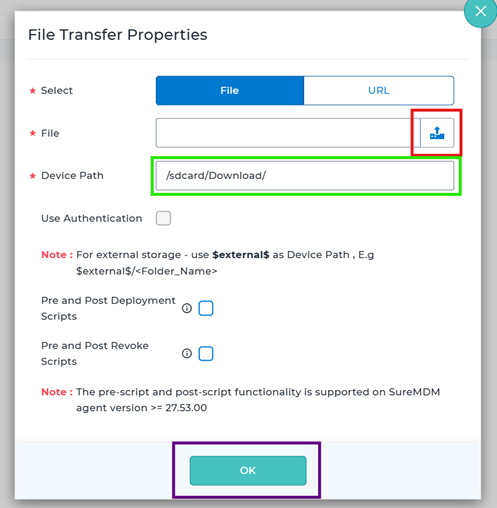
A security warning appears prompting whether to continue.
Check the confirmation box.
Click 'OK'.
Click 'Save' to finish creating the job.
SmartBrowser Configuration for Zebra only
In order to use the /enterprise/usr directory on 42 gears an additional job must be created.
In the SureMDM Console, go to the 'Jobs' tab.
Select 'Android'.
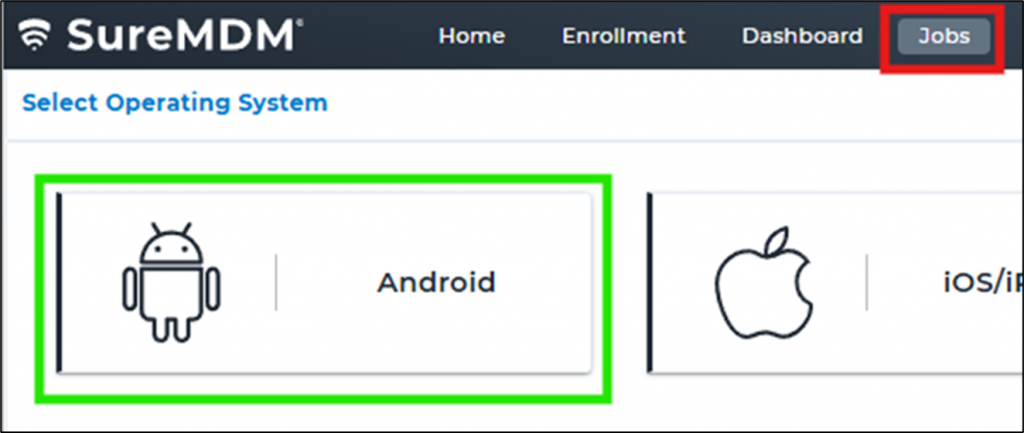
In Create Job [Android], choose 'Run Script'.
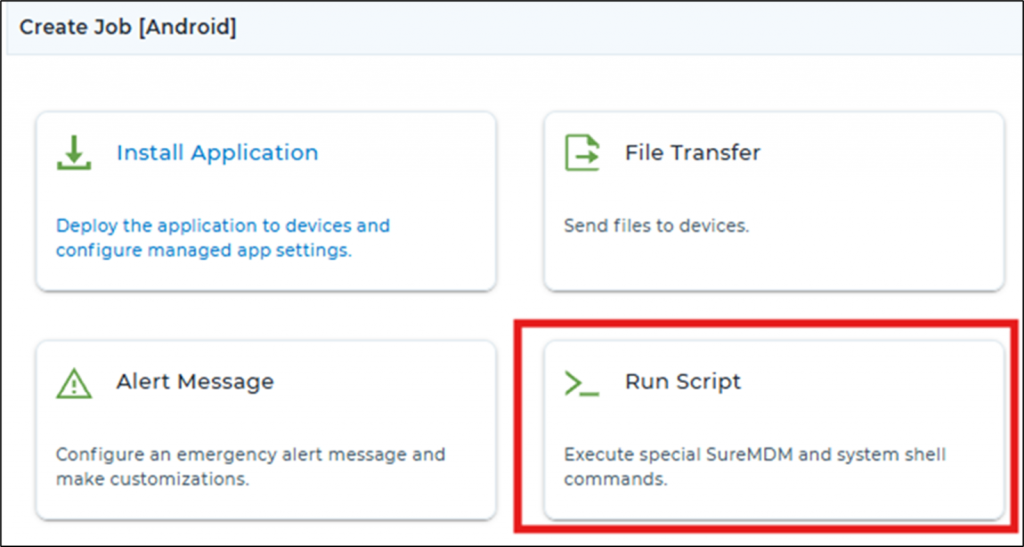
Enter a Job Name.
Add the following script :
mv /sdcard/Config name here.sbp /enterprise/usr/ Config name here.sbp chmod 777 /enterprise/usr/ Config name here.sbp

Click 'Save' to complete
This can then be added as a composite job with the configuration.
In the SureMDM Console, navigate to the 'Jobs' tab.
Select 'Android'.
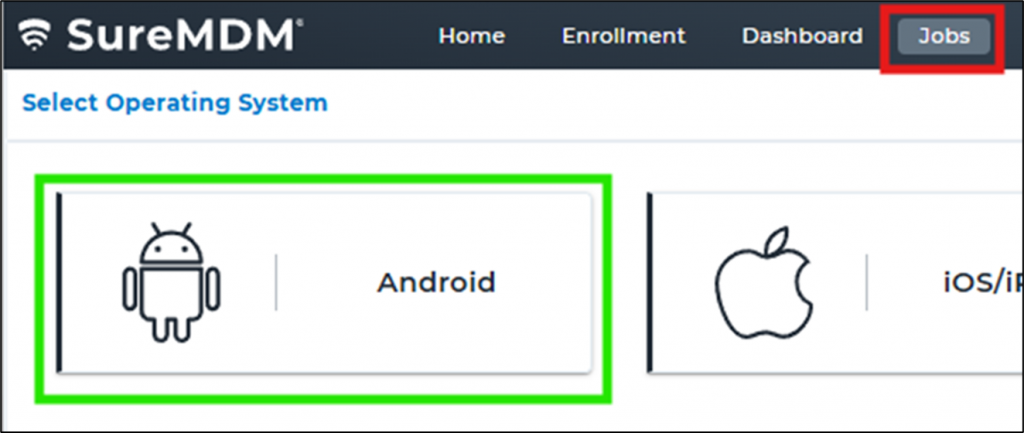
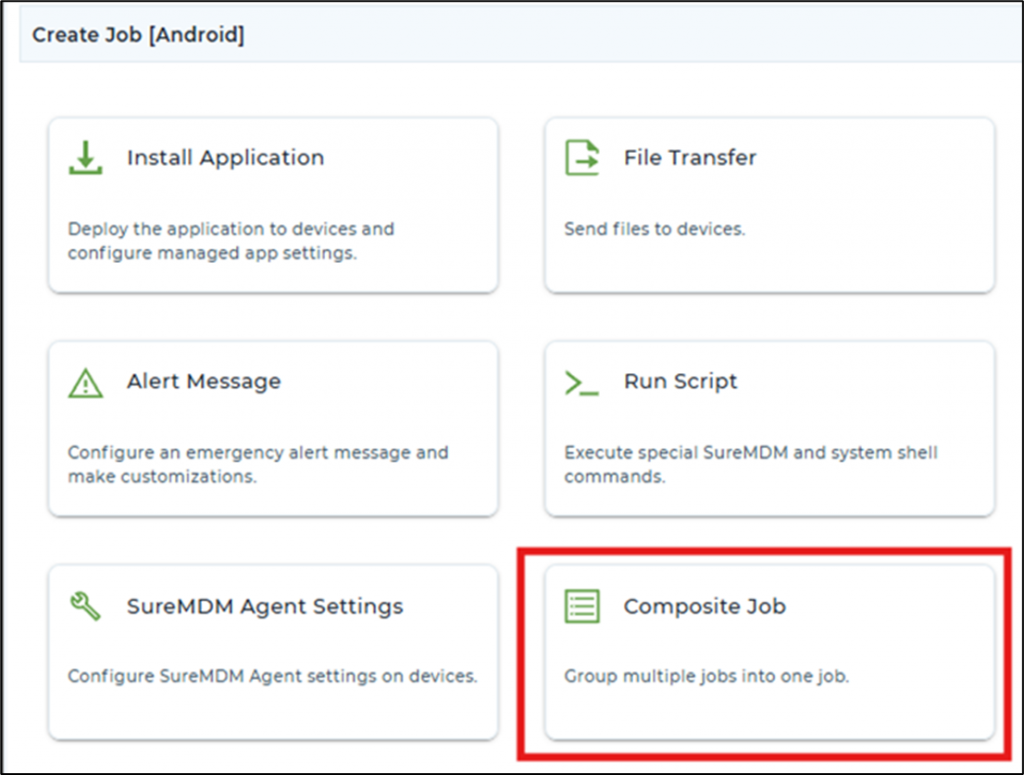
In Create Job [Android], choose 'Composite Job'.
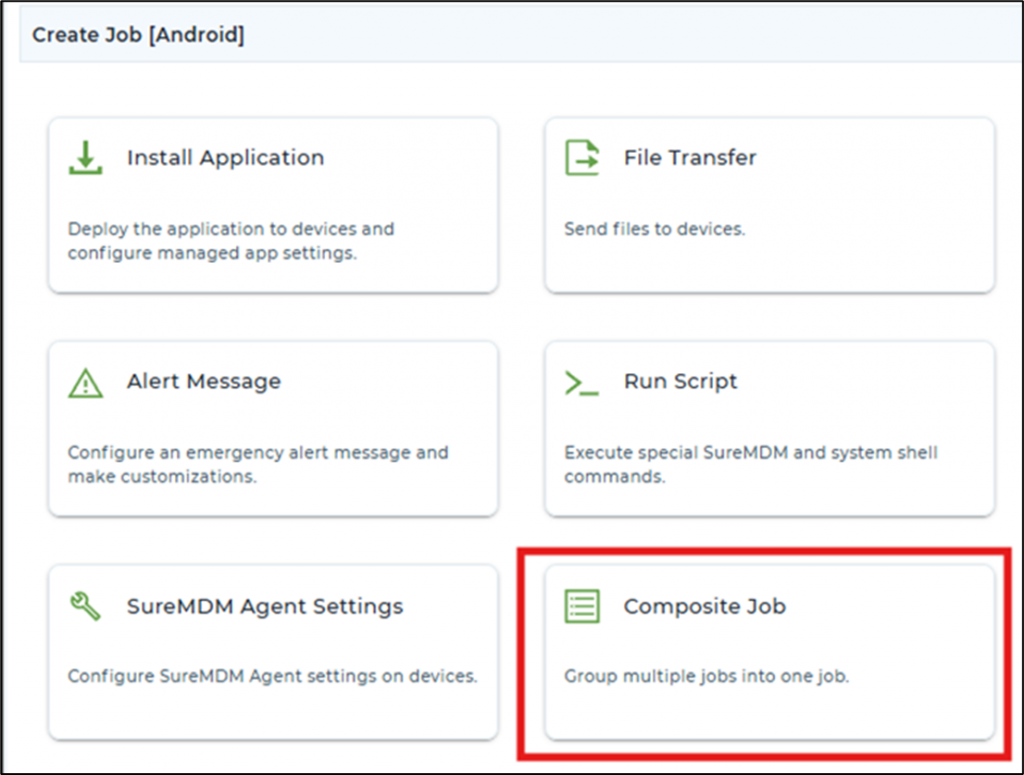
Enter a Job Name.
Click on 'Add'.
Locate both configuration and script jobs, and click 'ok'.
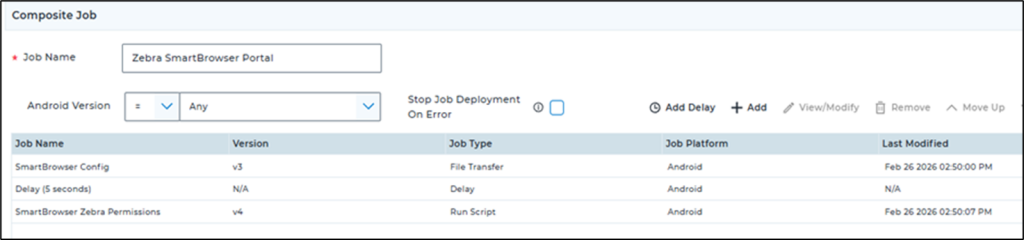
5 Second delay can be added between each installation to ensure packages have been delivered successfully, this is done by pressing 'Add Delay'.
Press 'Save' to complete.
SmartBrowser Configuration for Honeywell only
In order to use the 'storage/IPSM/StayLinked' directory on 42 gears an additional job must be created.
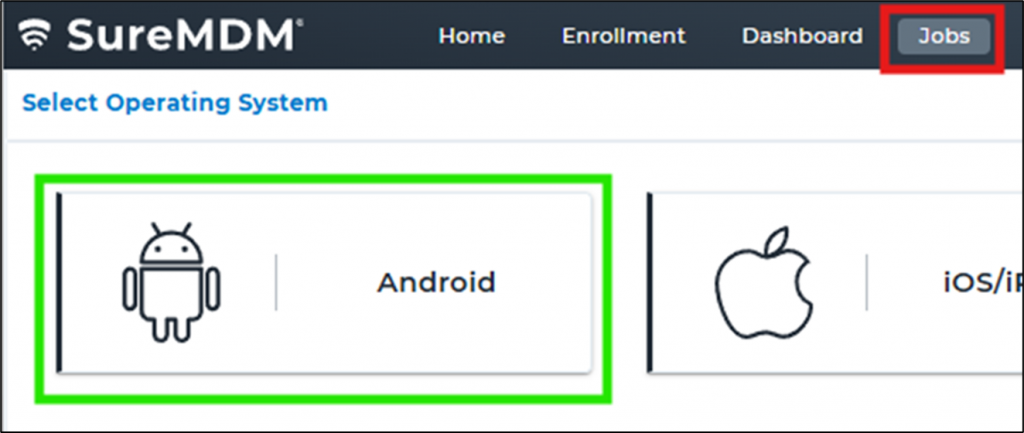
In the SureMDM Console, go to the 'Jobs' tab.
Select 'Android'.
In Create Job [Android], choose 'Run Script'.
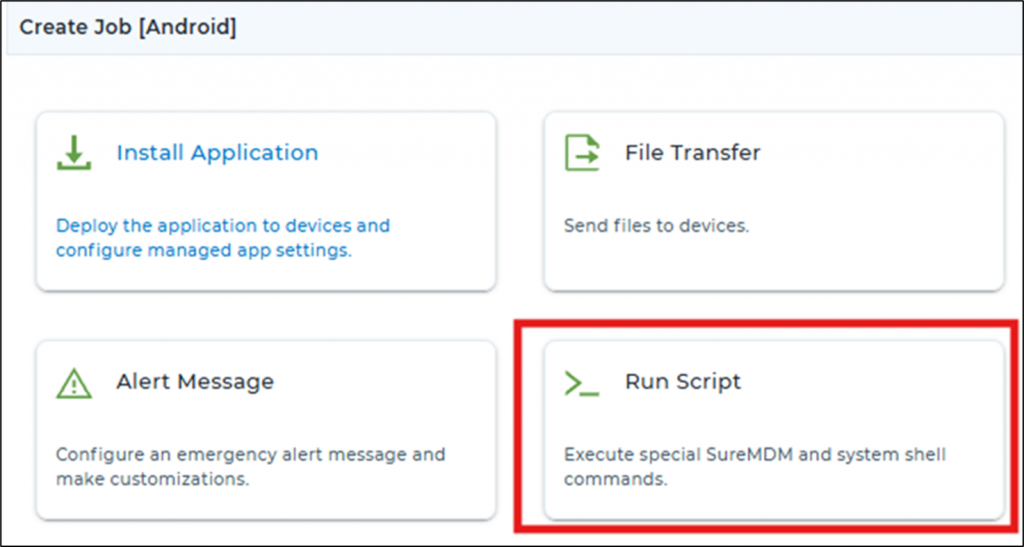
Enter a 'Job Name'.
Add the following script :
mkdir /storage/IPSM/StayLinked
mv /sdcard/ Config name here.sbp /storage/IPSM/StayLinked/ Config name here.sbp
chmod 777 /storage/IPSM/StayLinked/Config name here.sbp

- Click 'Save' to complete
This can then be added as a composite job with the configuration.
In the SureMDM Console, go to the 'Jobs' tab.
Select 'Android'.
In Create Job [Android], choose 'Composite Job'.
Enter a Job Name.
Click on 'Add'.
Locate both configuration and script jobs, and click 'ok'.
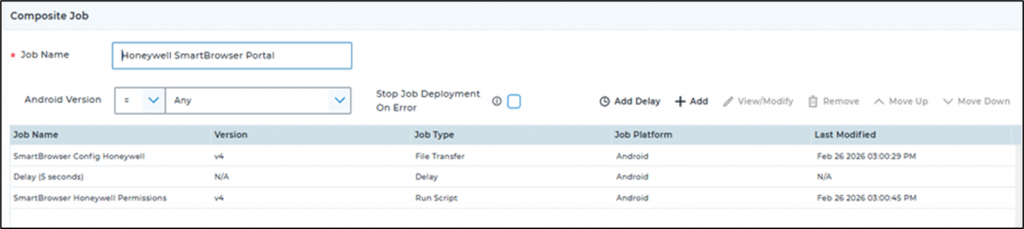
5 Second delay can be added between each installation to ensure packages have been delivered successfully, this is done by pressing 'Add Delay'.
Press 'Save' to complete.
Installing SmartBrowser and Configuration Using 42 Gears
Installing SmartBrowser and the Configuration in 42 Gears is done via adding the Jobs or App Store Entry to a Profile.
In the SureMDM Console, navigate to the 'Profiles' tab.
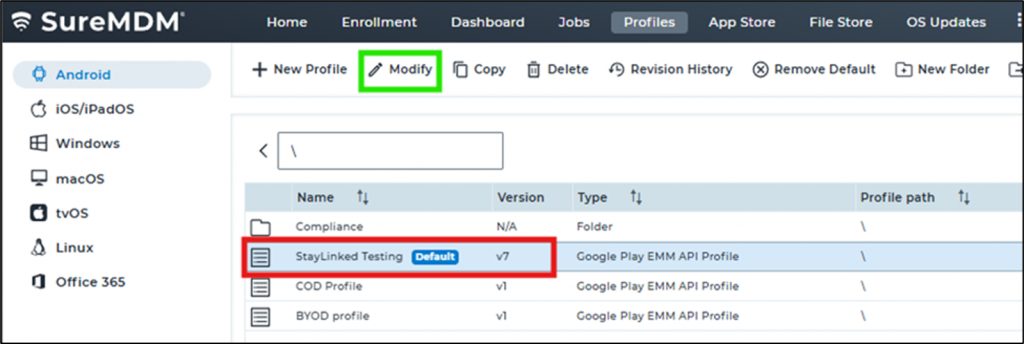
Click on the profile being used and then select 'Modify'.
Select 'Application Policy'.
Click 'Add'.
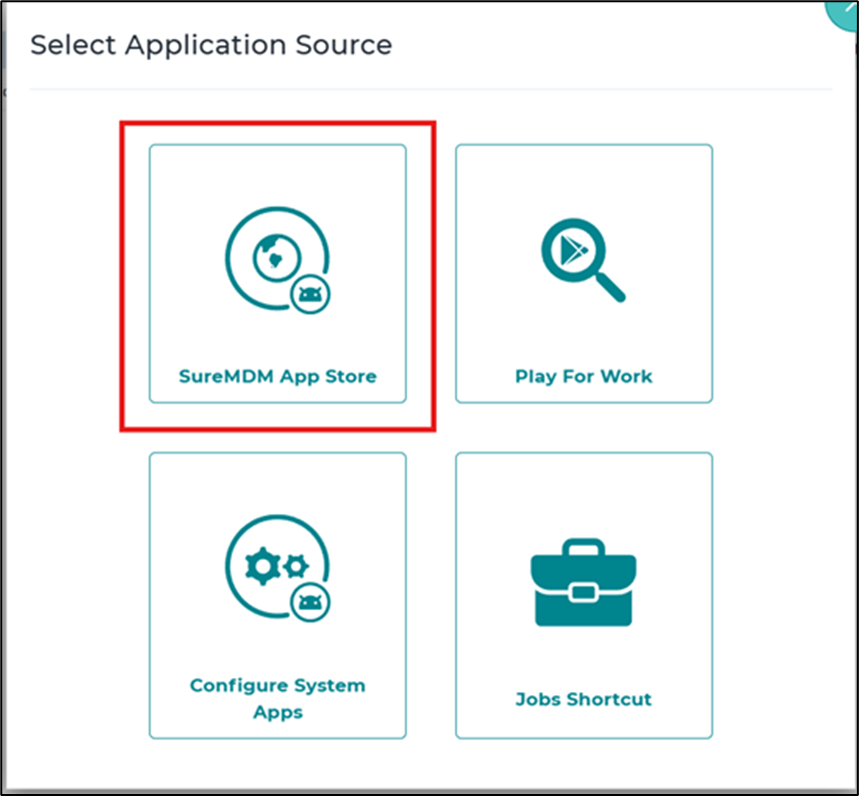
To add the SmartBrowser from the App Store select SureMDM App Store
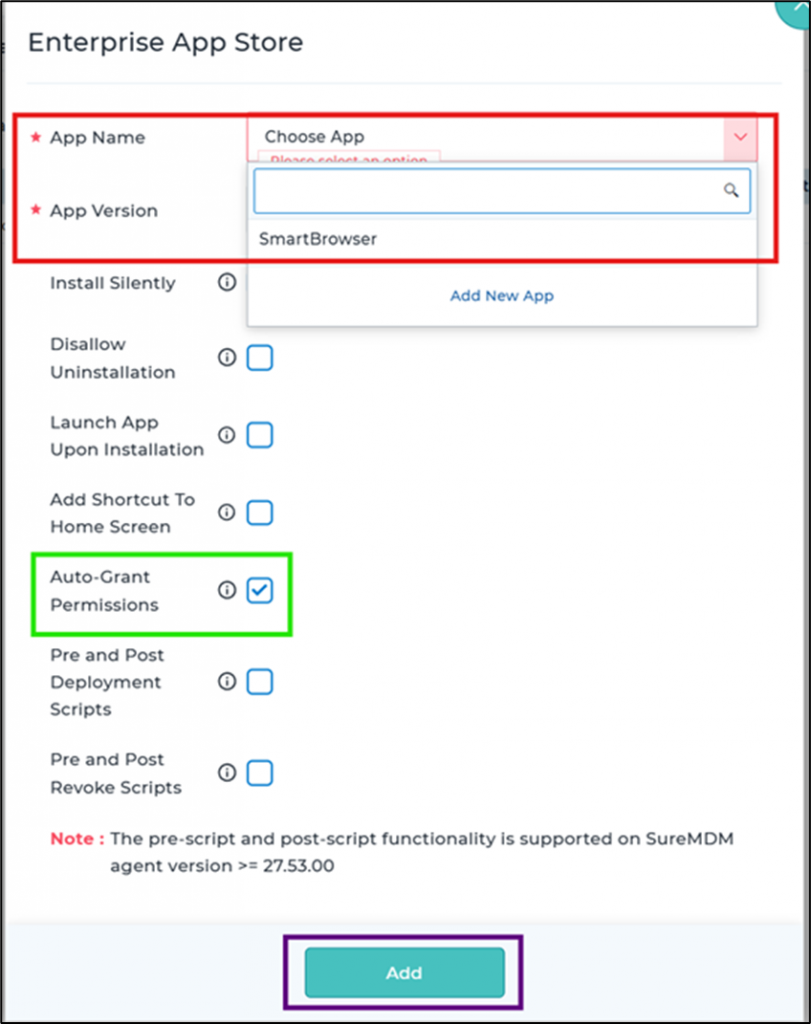
Under App Name click on 'Choose App'.
Select Uploaded SmartBrowser.
Optional: Select 'Auto-Grant Permissions'.
Click 'Add' to Complete.
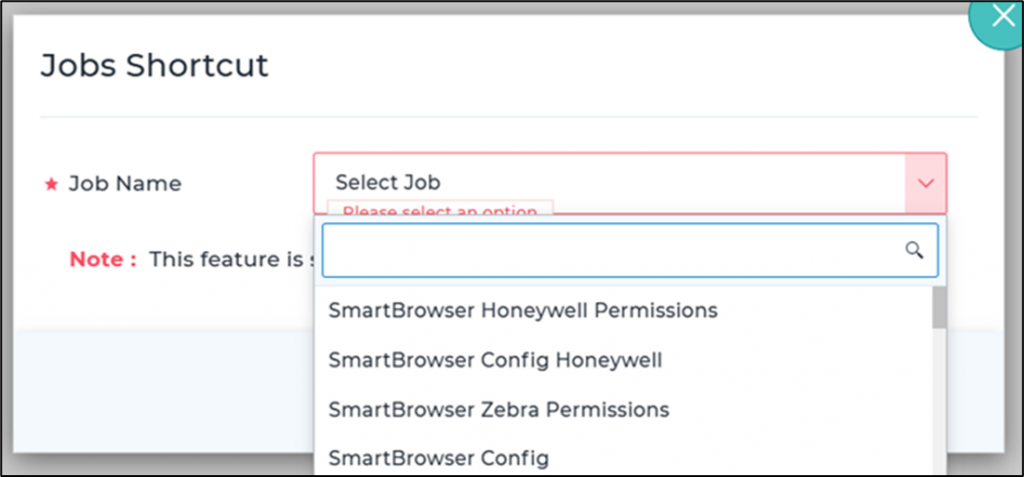
Under Job Name click 'Select Job'.
Locate Job in the list.
Click on 'Add' to Continue.
The device will now synchronize and install the selected Jobs or App Store application.
Troubleshooting SmartBrowser Configuration Import
Any issues with importing the configuration .sbp file is diagnosed by examining the logs.
Common importing issues can be permission based and the log files will show the following lines:
stageIfNewOrUpdated Failed to stage /enterprise/usr/CONFIG-1.0.1-bb081308-0f79-44c1-b54a-33f0093667e4.sbp: /enterprise/usr/CONFIG-1.0.1-bb081308-0f79-44c1-b54a-33f0093667e4.sbp: open failed: EACCES (Permission denied)
processFilesSync() Completed with no imports
The above issue is resolved by adding: __chmod 777 script to the .sbp file to change the permissions.
Share the post "Client Deployment using EMM / MDM Products"